

Requirements
Before you begin the integration, ensure you have a professional presence on Facebook:- Create a Page: If you currently only use a personal account, you must create a Facebook Page for your business.
- Required Details: When setting up your page, ensure you provide a Page Name, select a relevant Category, and include your Contact Information and Website URL.
- Meta Business Account: Both Facebook and Instagram direct messages can be linked to the same account details, and you will be directed to a facebook login page for both.
Integration Steps
To link your Facebook Page to the SalesCaptain platform, follow these steps:- Navigate to Settings > Integrations.
- Select Facebook from the list of available integrations.
- Click Log into your Facebook.
-
A pop-up will appear requesting permission to access your account. Authenticate using your Facebook credentials.
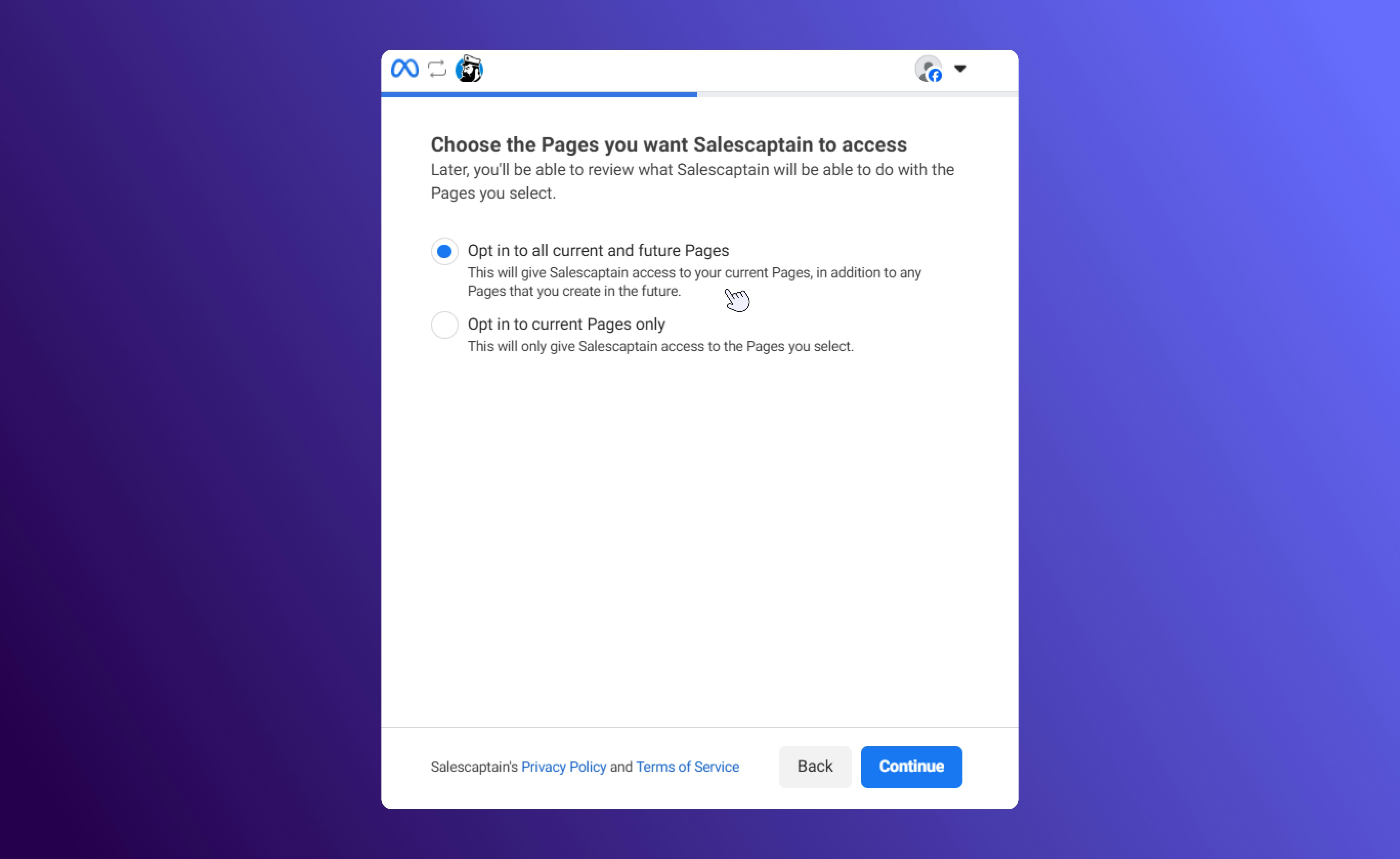
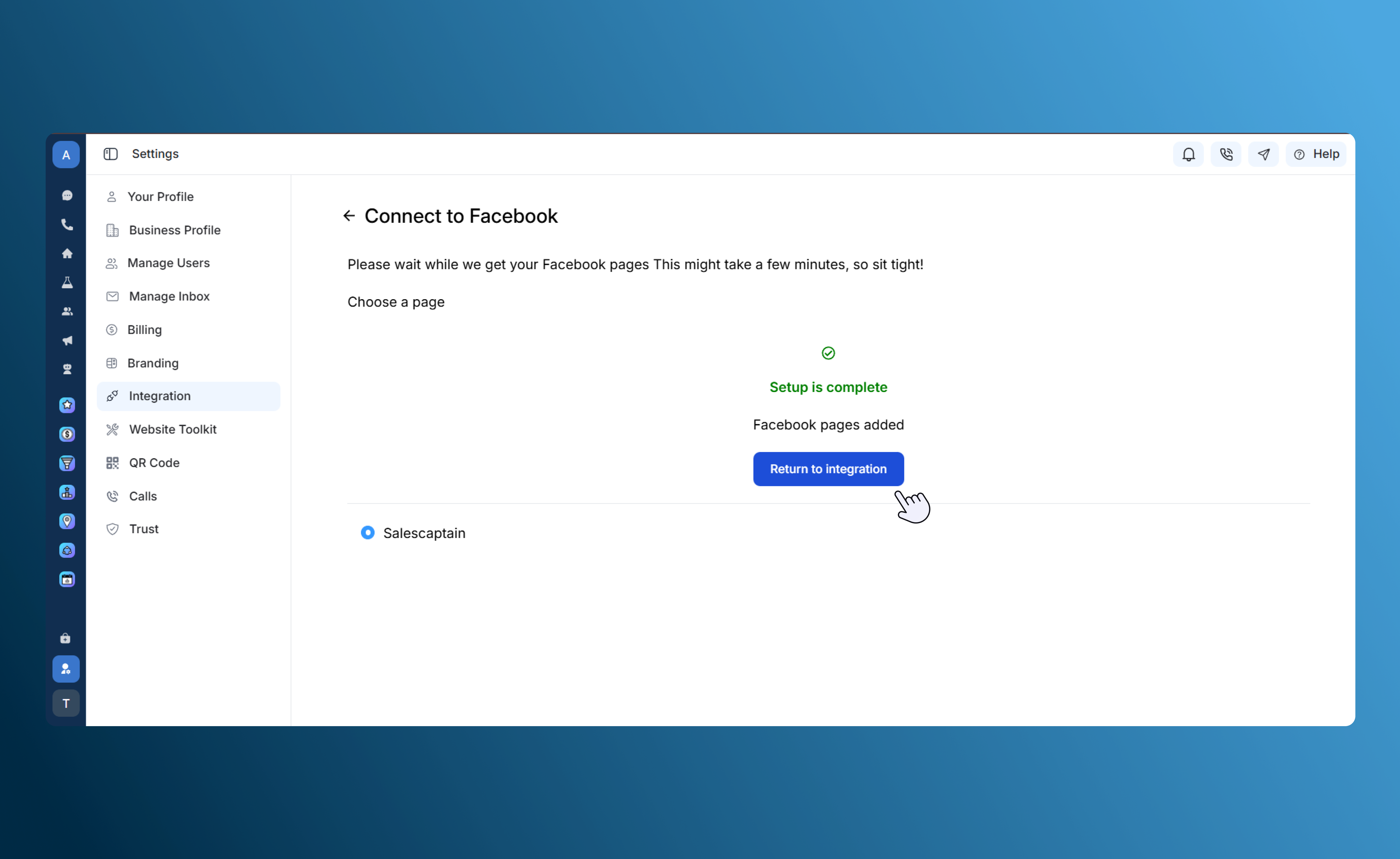
- SalesCaptain will display a list of Business Pages associated with your account. Select the page you wish to sync.
-
Once selected, the screen will display a Success Message confirming the connection.
Conversation Management
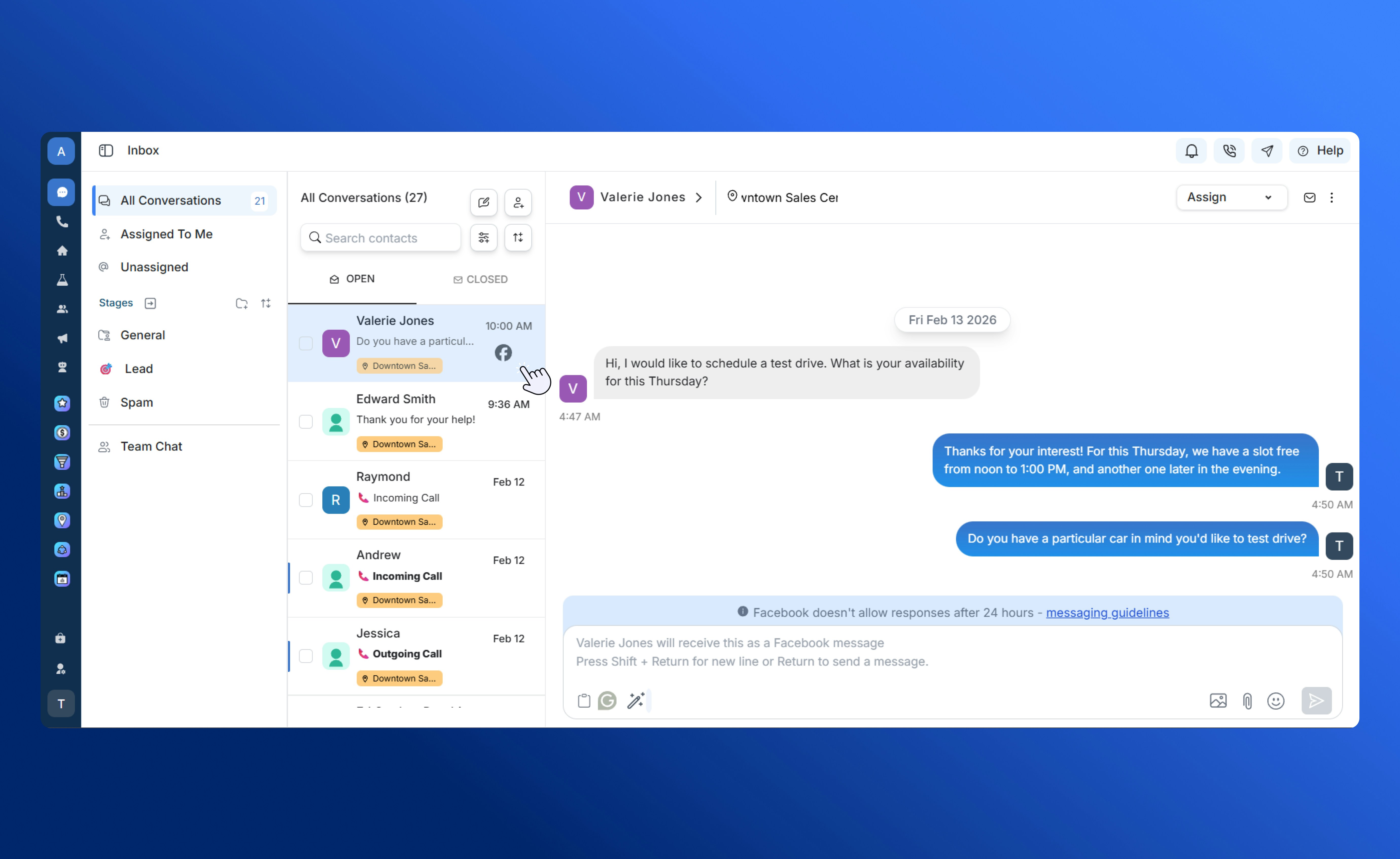
Facebook integrations utilize a “Temporary Chat” logic to keep your inbox organized and compliant with platform standards.- 24-hour Window: Conversations remain active as long as there is ongoing communication.
- Automatic Closure: If there is no communication from either side for 24 consecutive hours, the conversation will be closed automatically.
-
Conversation History: You can access past messages under the Closed tab in the Unified Inbox.
Troubleshooting
If you are unable to see your Business Page during the setup process, please verify:- That you are an Admin of the page.
- That the page is “Published” and visible to the public.
- That you have granted all requested permissions during the Facebook login prompt.