

Overview
A Conversation Profile acts as a dedicated account for a specific function of your business. It represents a team (e.g., Sales), a department (e.g., Support), or a distinct communication channel. Each profile houses its own:- Email Address: Linked Gmail account or email routing addresses.
-
Phone number: Profile names and colours can be modified according to the specific users and teams that would be using it.
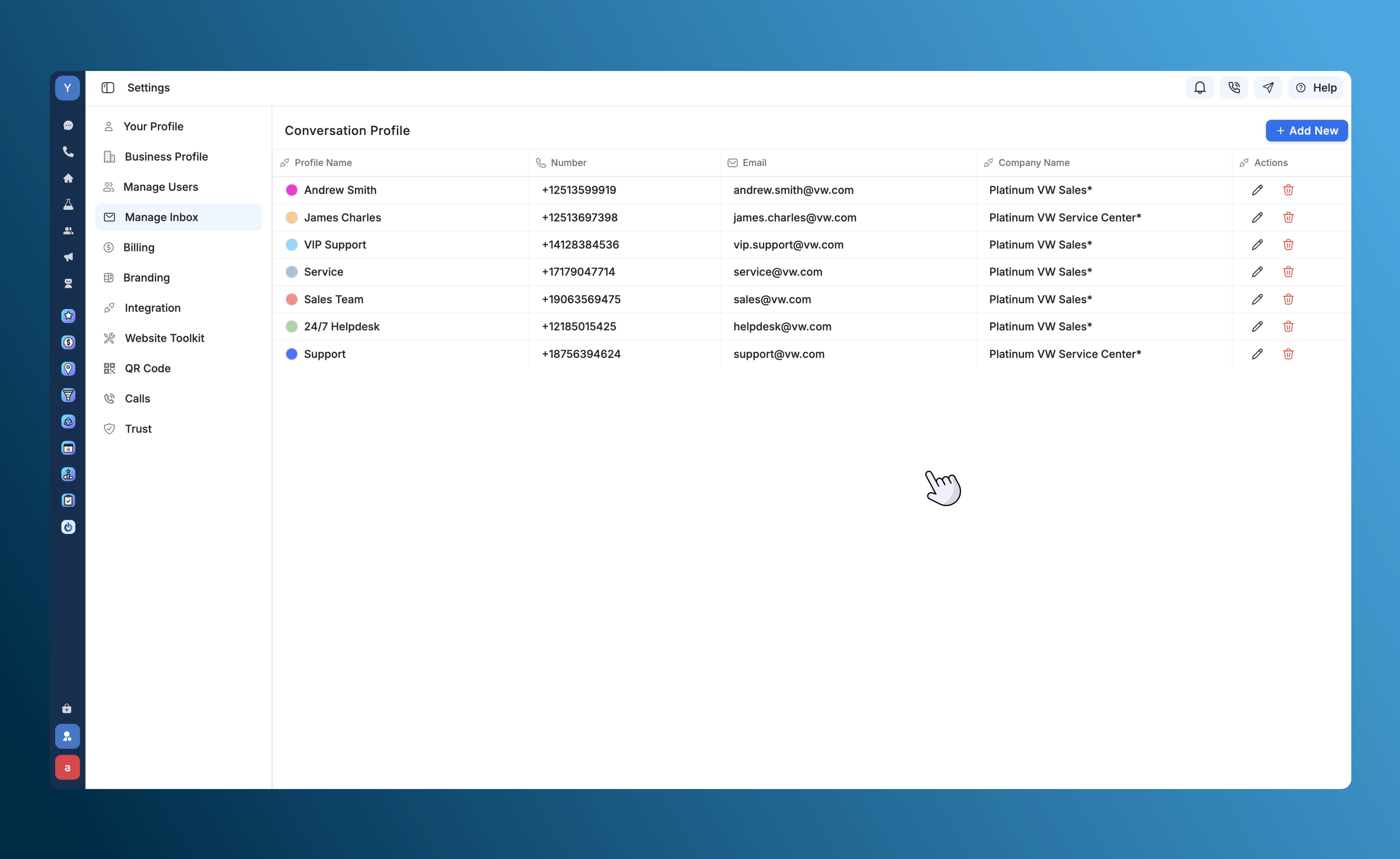
How It Works
Profiles are the destination for incoming traffic. When you connect an email address to SalesCaptain, you create a specific profile unique to that email.Inbox Access and Visibility
Security and relevance are handled by linking users to profiles. A conversation that lands in a specific profile is visible only to users who have been granted access to that profile. You can connect existing phone numbers and SalesCaptain numbers to individual users. To get a new phone number or guidance on porting an existing number to SalesCaptain, please contact our support team at [email protected].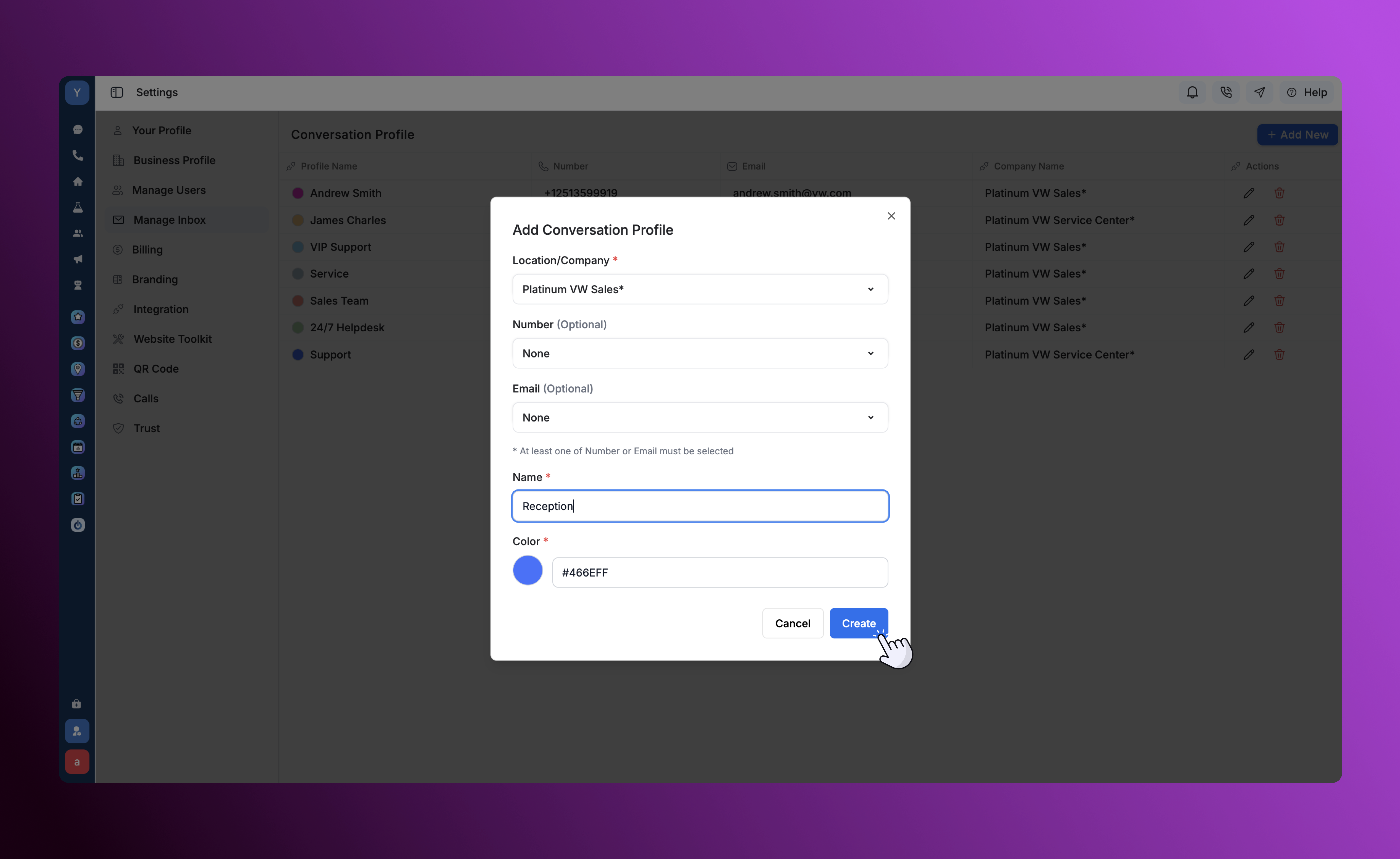
Setting up Gmail Integration
To fully utilize Conversation Profiles for email, you can connect specific Gmail accounts to specific profiles. Once connected, all incoming and outgoing emails from that address are automatically routed to the assigned profile in the SalesCaptain Inbox.Prerequisite: Connect Email
Before linking a profile, ensure you have already connected your Email account to SalesCaptain via Settings → Integrations → Gmail/Outlook By default, users are provided with a [email protected] email.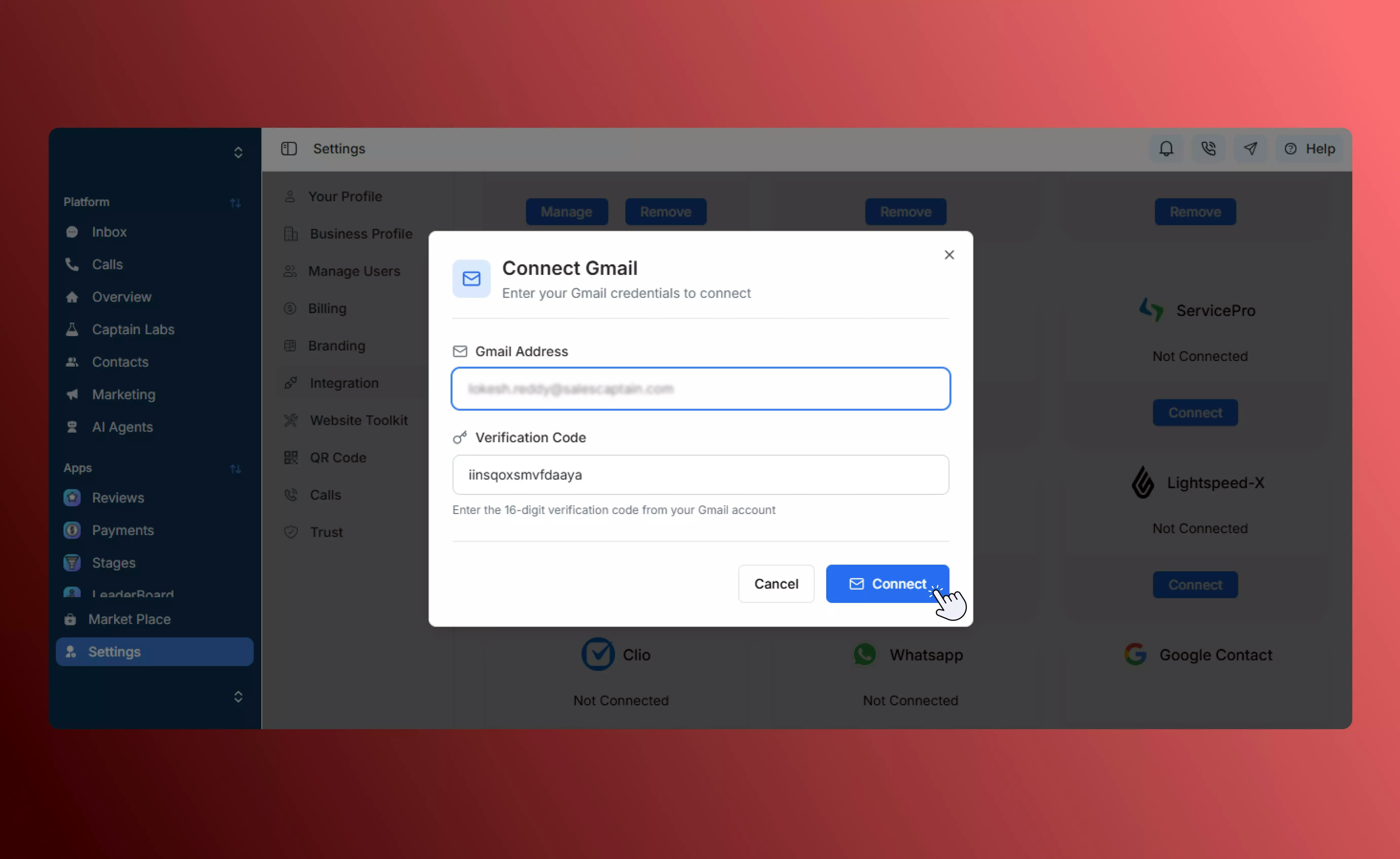
Connect Your Conversation Profile
After connecting Gmail, you must link it to your conversation profile to start using email inside the Inbox.- Navigate to Settings → Manage Inbox.
- Select Add New, and enter the details linked to the Conversation Profile.
- Assign the connected Gmail account to the profile.
- Click Save to apply your changes.
You can manage multiple Gmail inboxes within SalesCaptain by assigning different accounts to different profiles (e.g., sales@ to the Sales Profile and support@ to the Support Profile).
User Roles & Permissions
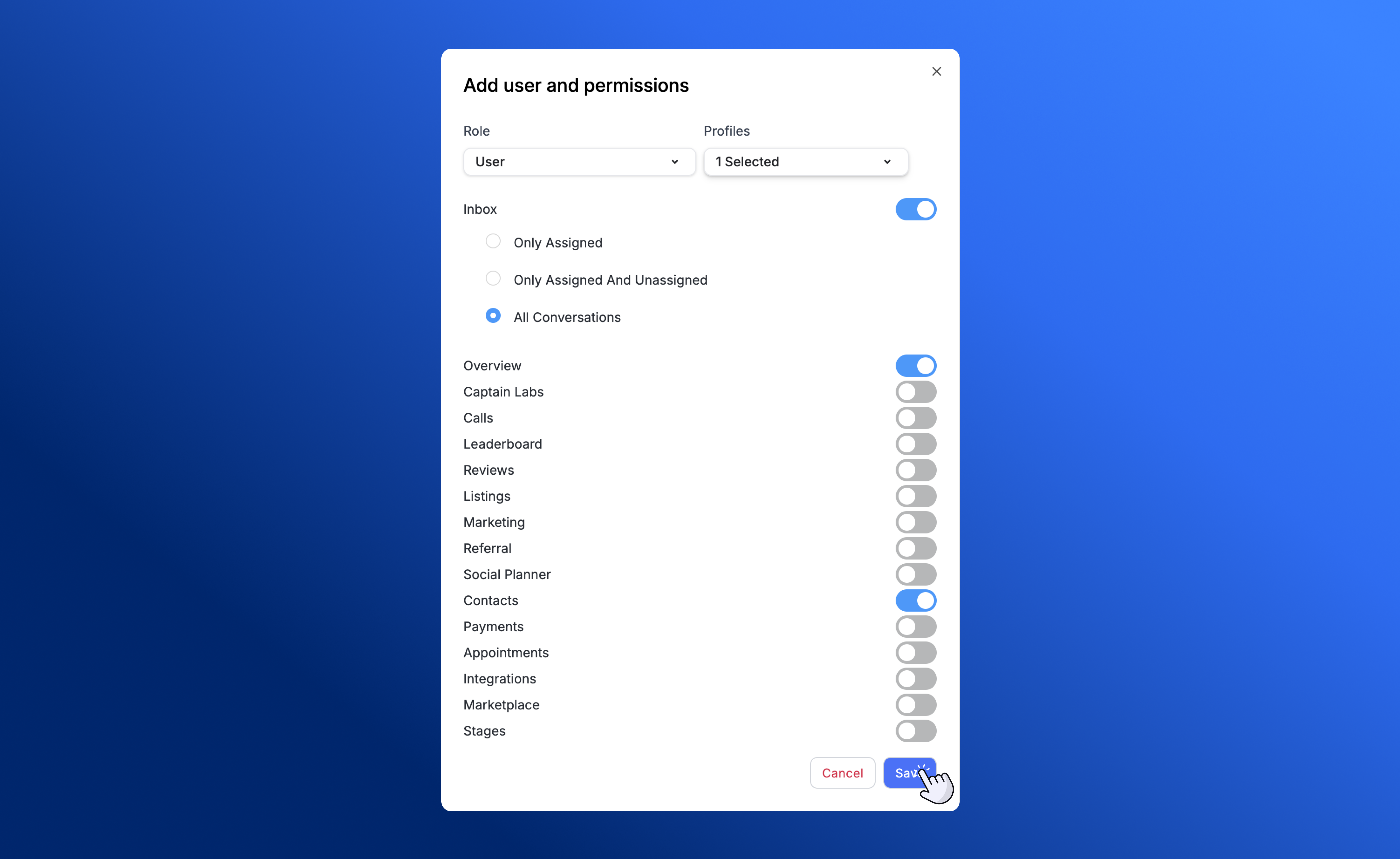
To fully utilize Conversation Profiles, it is important to understand how they interact with User Roles. While Profiles determine what conversations a user sees, User Roles determine what actions a user can take.- User Roles: Define permissions for each individual user for features such as accessing the inbox, making calls, managing reviews, and changing settings.
-
Profile Association: Each user is assigned a role but can be linked to one or multiple Conversation Profiles.
Use Cases: Structuring Your Organization
The most common way to utilize Conversation Profiles is to mirror your internal business structure. For example, having distinct profiles for sales, support and service.1. Sales
- Focus: Inbound leads and outbound prospecting.
- Setup: Contains sales phone lines and the primary sales email address.
- Benefit: Sales reps focus purely on closing deals without being distracted by technical support queries.
2. Support
- Focus: Customer issues, tickets, and troubleshooting.
- Setup: Connected to the support email alias.
- Benefit: Ensures customer issues are centralized and addressed promptly by the support team.
3. Service
- Focus: Field operations, scheduling, and existing client maintenance.
- Setup: Contains service dispatch lines.
- Benefit: Keeps logistical communication separate from initial sales conversations.
Best Practices
- Review Access Regularly: Periodically check which users are assigned to which profiles to ensure data privacy.
- Separate Functions: Avoid combining distinct departments (like Sales and Support) into one profile to keep metrics and workflows clear.
- Test Routing: Send a test email to your connected Gmail account to verify it appears in the correct Conversation Profile inbox.