

This can be a complicated process. If you encounter any issues during setup, please email [email protected] for assistance.
Requirements
Before starting the integration, ensure you have the following:- WhatsApp Business Account: Standard personal WhatsApp accounts cannot be connected. You must use a registered Business account.
- Twilio Account: You must have an active Twilio account to facilitate the API connection.
- A Phone Number: A phone number that is not currently linked to another WhatsApp account.
Step 1: Configure the Channel in SalesCaptain
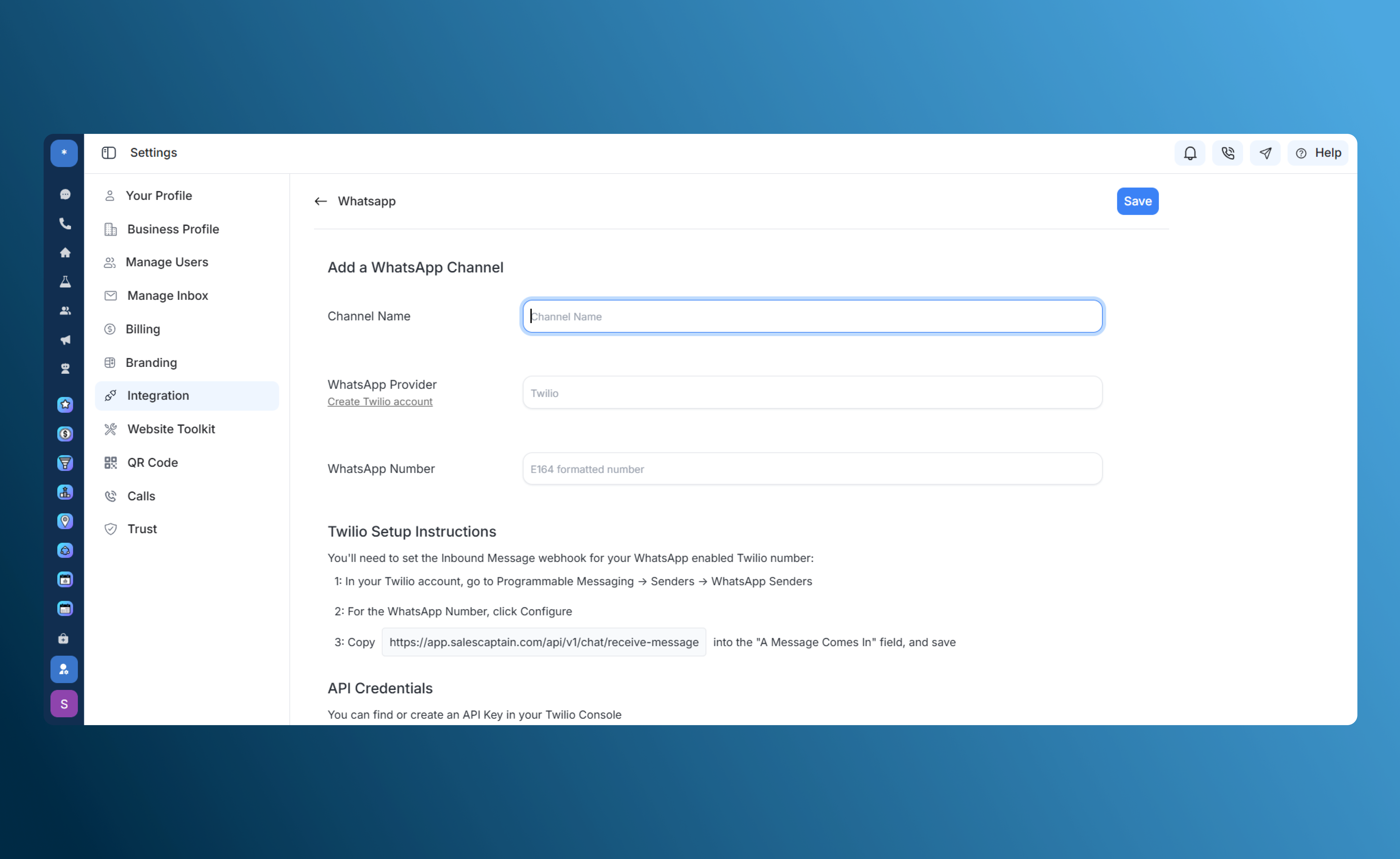
To begin, you need to create the WhatsApp channel within your SalesCaptain dashboard:- Navigate to Settings > Integrations.
- Select WhatsApp.
- Click Add WhatsApp Channel.
-
Enter a Channel Name (e.g., “Main Support Line”) and the Phone Number you intend to use.
Step 2: Configure Twilio
Once your Twilio account is set up with a WhatsApp-enabled number, you must point Twilio to the SalesCaptain server to receive messages.- Log in to your Twilio Console.
- Go to Programmable Messaging > Senders > WhatsApp Senders.
- Locate your WhatsApp Number and click Configure.
- In the “A Message Comes In” field, paste the following URL:
https://app.salescaptain.com/api/v1/chat/receive-message - Save your changes.
Step 3: Connect API Credentials
To finalize the link, you must provide your Twilio credentials to SalesCaptain. You can find these in your Twilio Console under the Account Settings or API Keys section.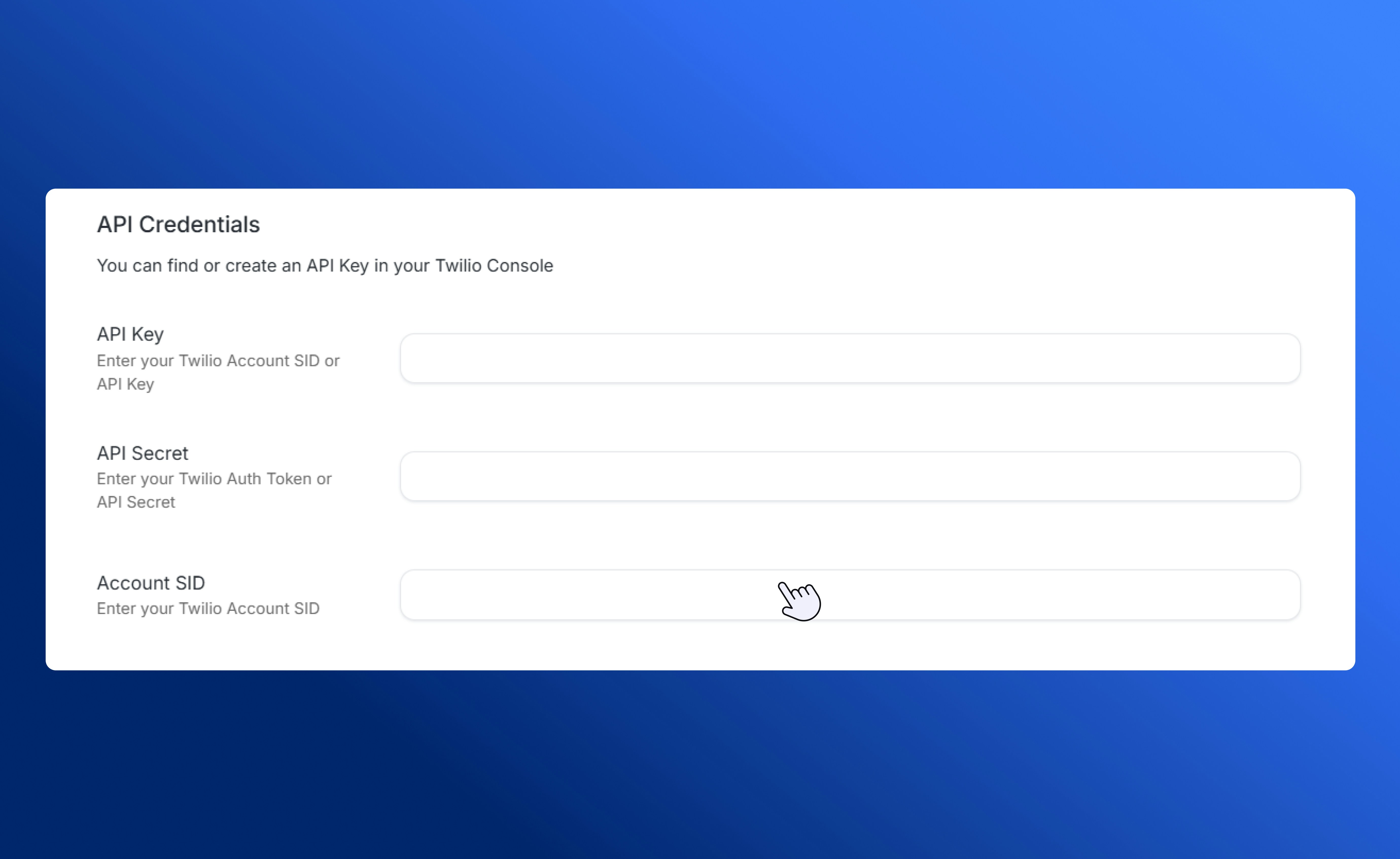
Understanding the 24-Hour Window
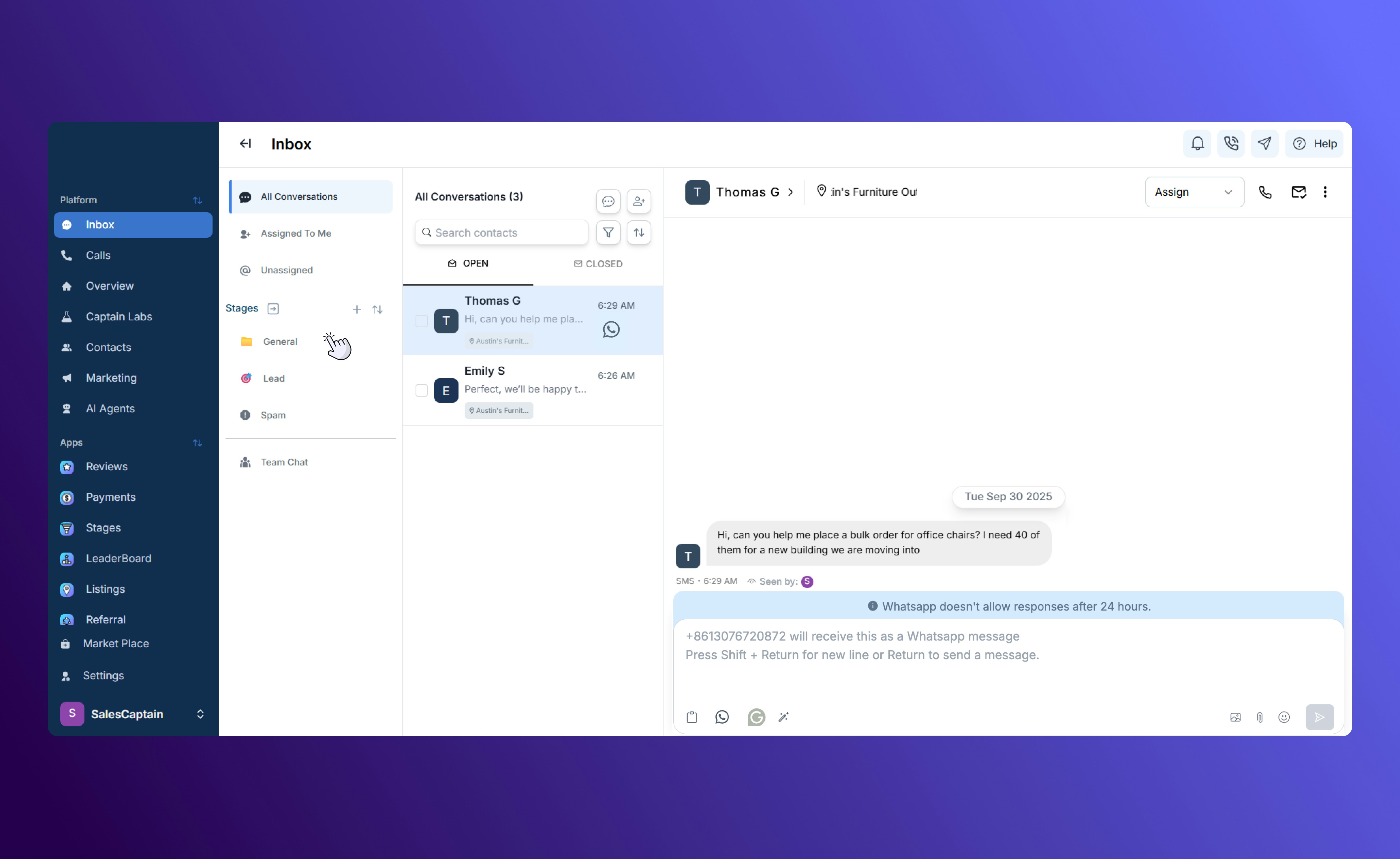
WhatsApp’s Business API operates on a 24-hour session logic.- Temporary Chats: A conversation session lasts for 24 hours from the last message sent by the customer.
- Automatic Closure: If there are no messages exchanged from either side for a full 24-hour period, the chat session will close automatically.
- Finding Past Conversations: After a window closes, you can still access the conversation history in the Closed tab of the Universal Inbox.