

Before You Begin
Before connecting Gmail, make sure:- You have access to the Gmail account you want to connect
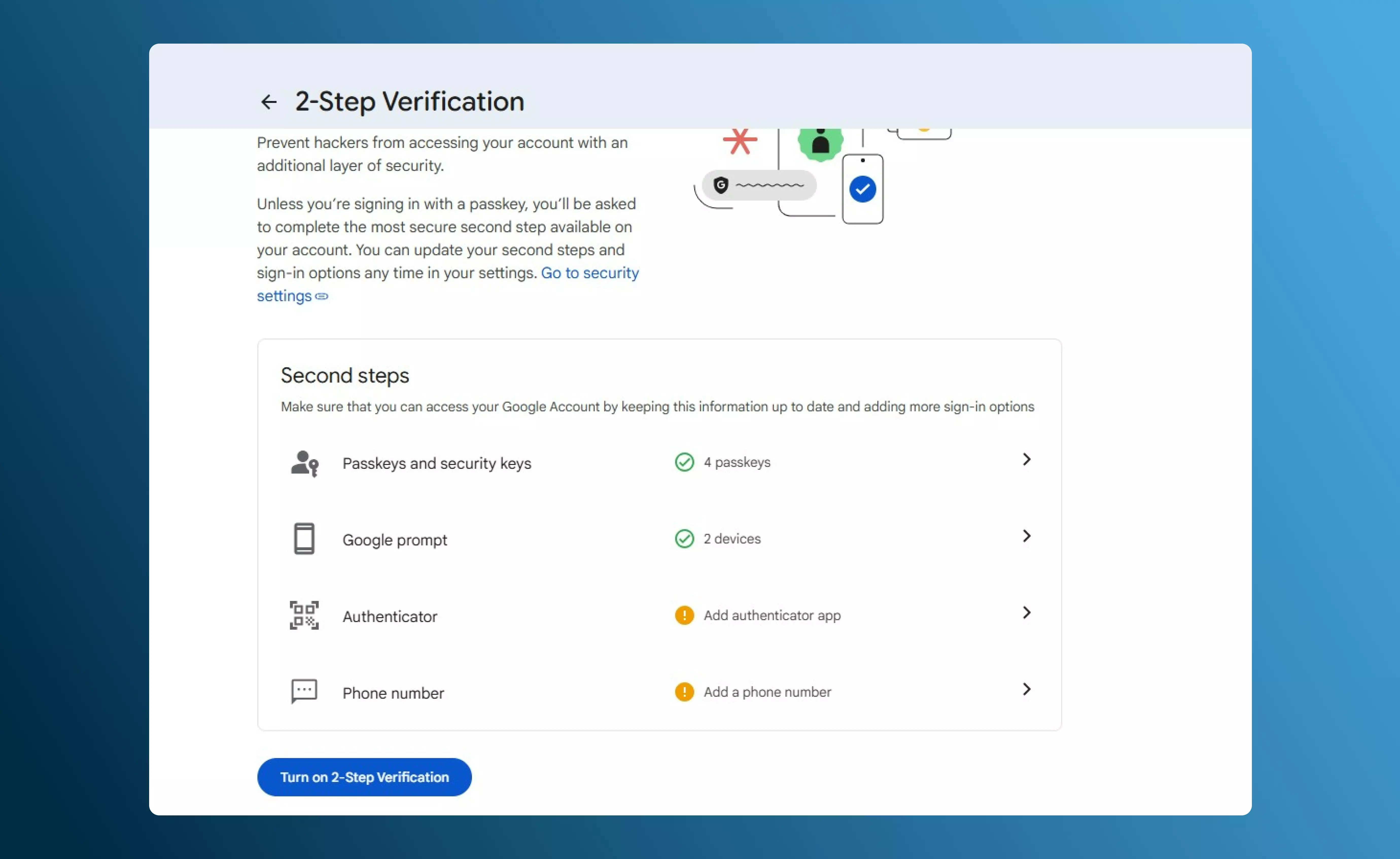
- 2-Step Verification is enabled on your Google account (required to generate an App Password)
Connect Gmail
Follow the steps below to connect your Gmail account to SalesCaptain.Step 1: Open Gmail Integration
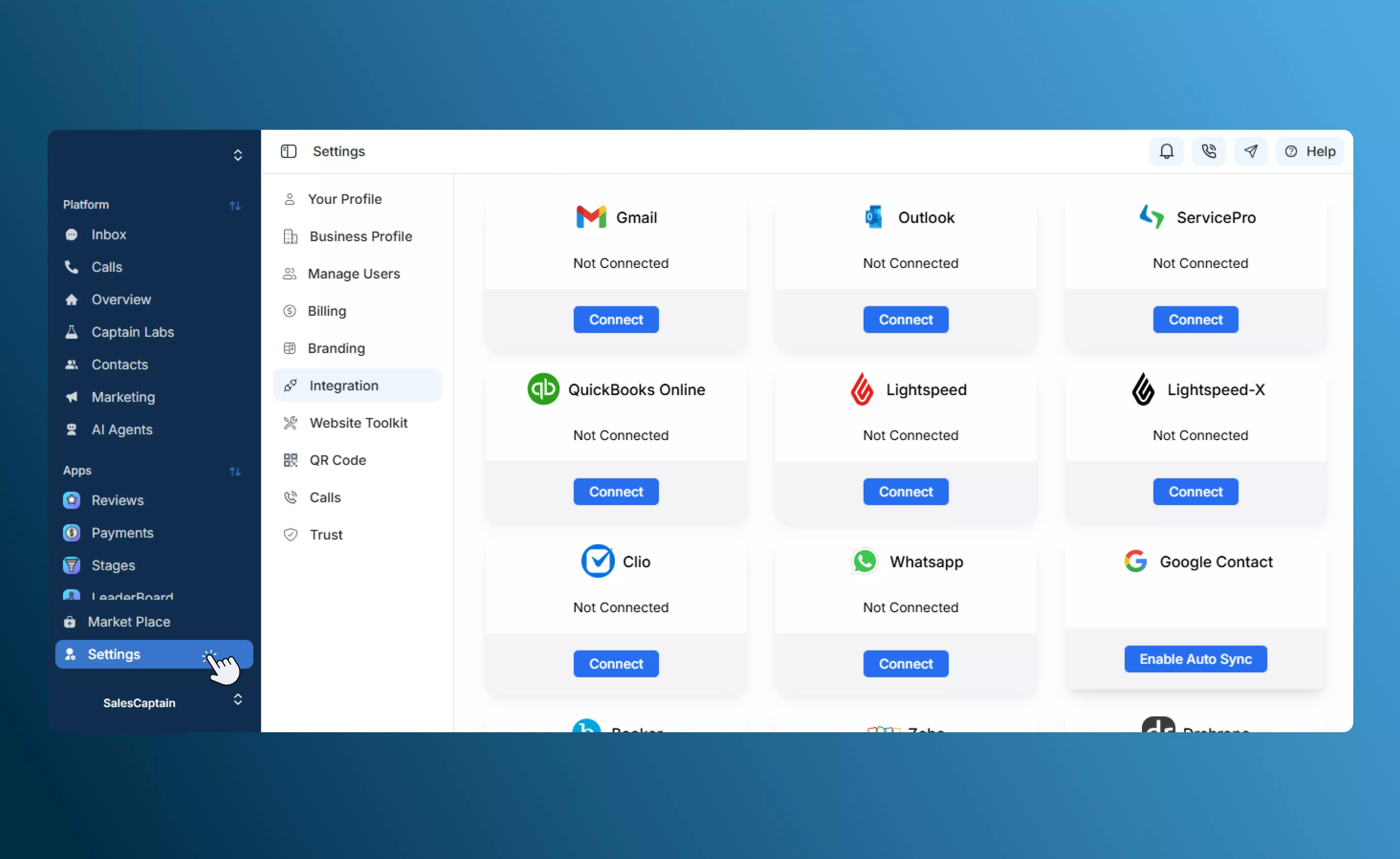
- Log in to your SalesCaptain dashboard.
- Go to Settings → Integrations → Gmail.
- Select Gmail and click Connect.
Step 2: Open Google Account Settings
- Open a new browser tab.
- Click on Manage your Google Account.
- Ensure you are logged in with the same Gmail address you want to connect.
Step 3: Generate an App Password
-
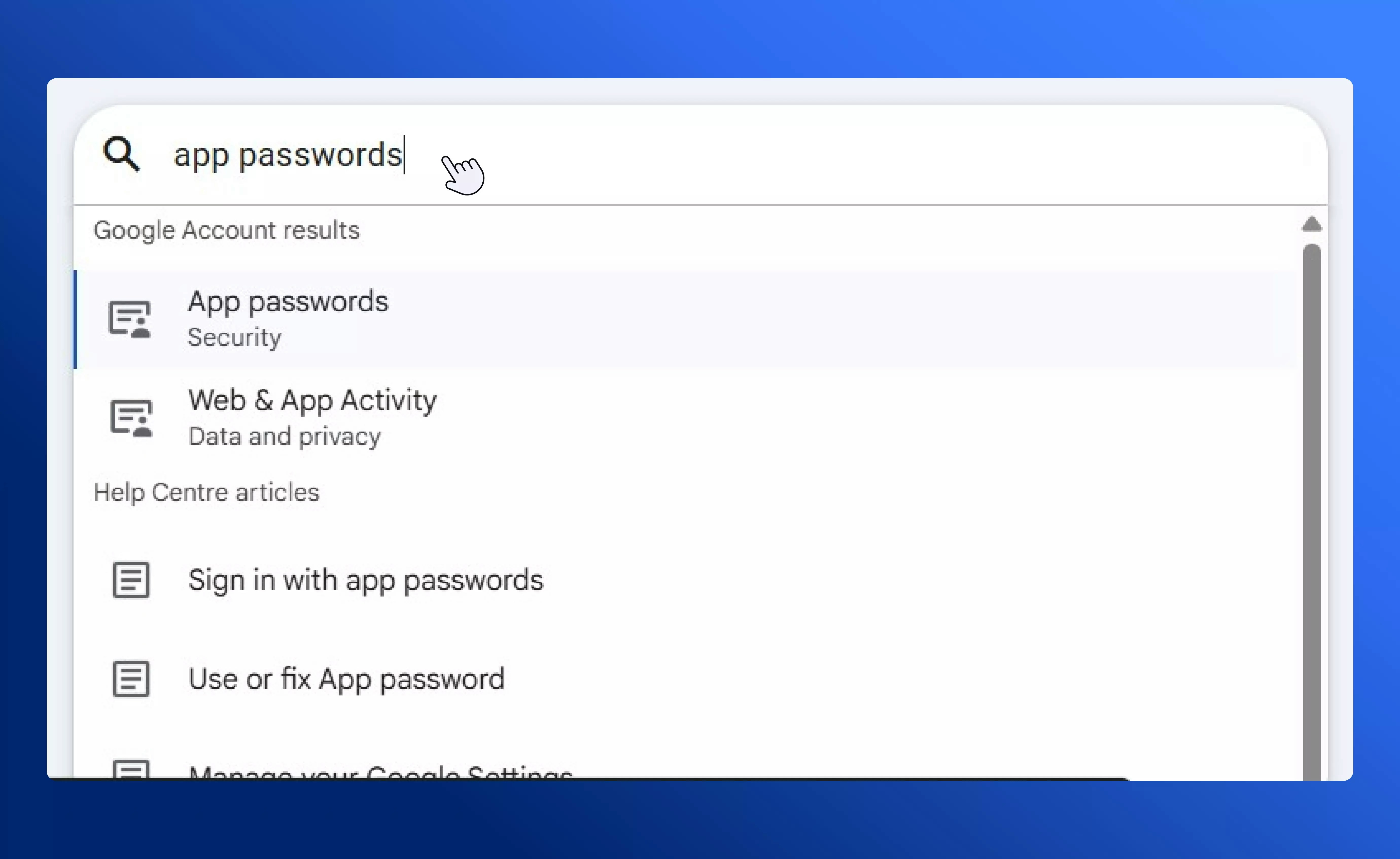
In your Google Account settings, search for App passwords.
-
Open App passwords under the Security section.
Note: If the App passwords option is not visible, enable 2-Step Verification, then search again.
-
Enter a custom name such as
SalesCaptain.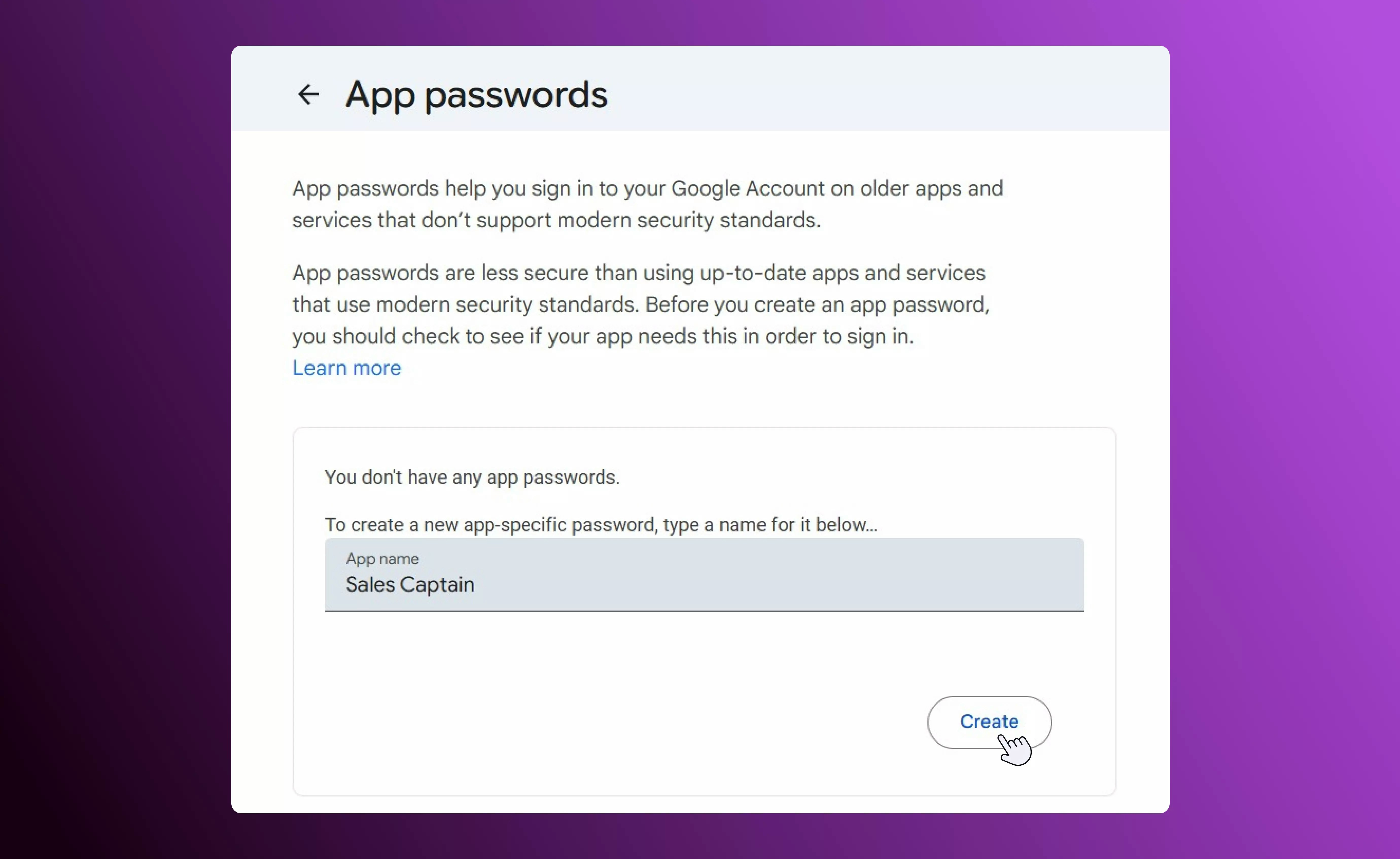
- Click Create.
-
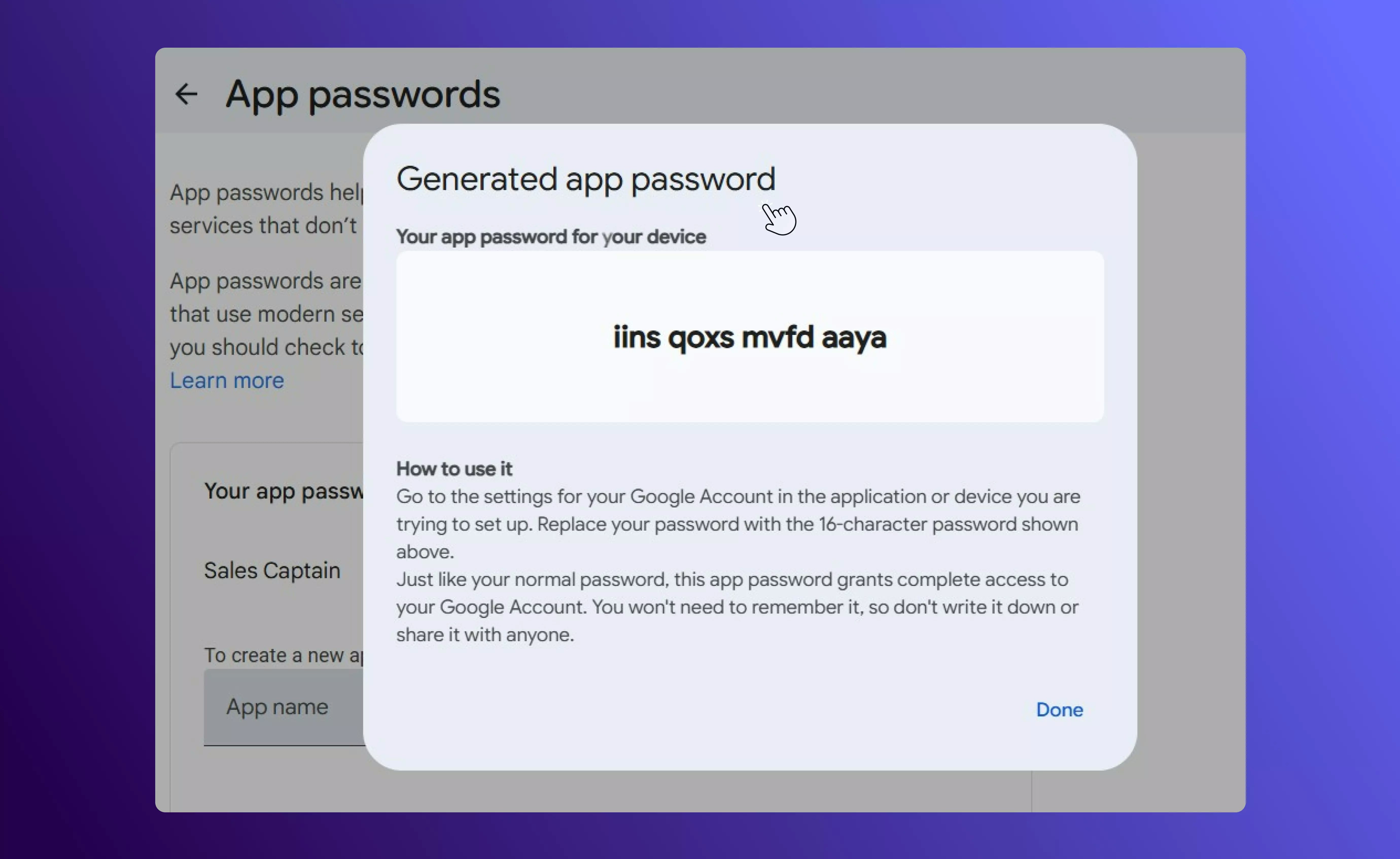
Google will generate a 16-character App Password.
Step 4: Complete the Connection
- Copy the generated App Password.
- Return to the SalesCaptain – Connect Gmail popup.
- Enter:
- Your Gmail address
-
The 16-character App Password in the verification code field
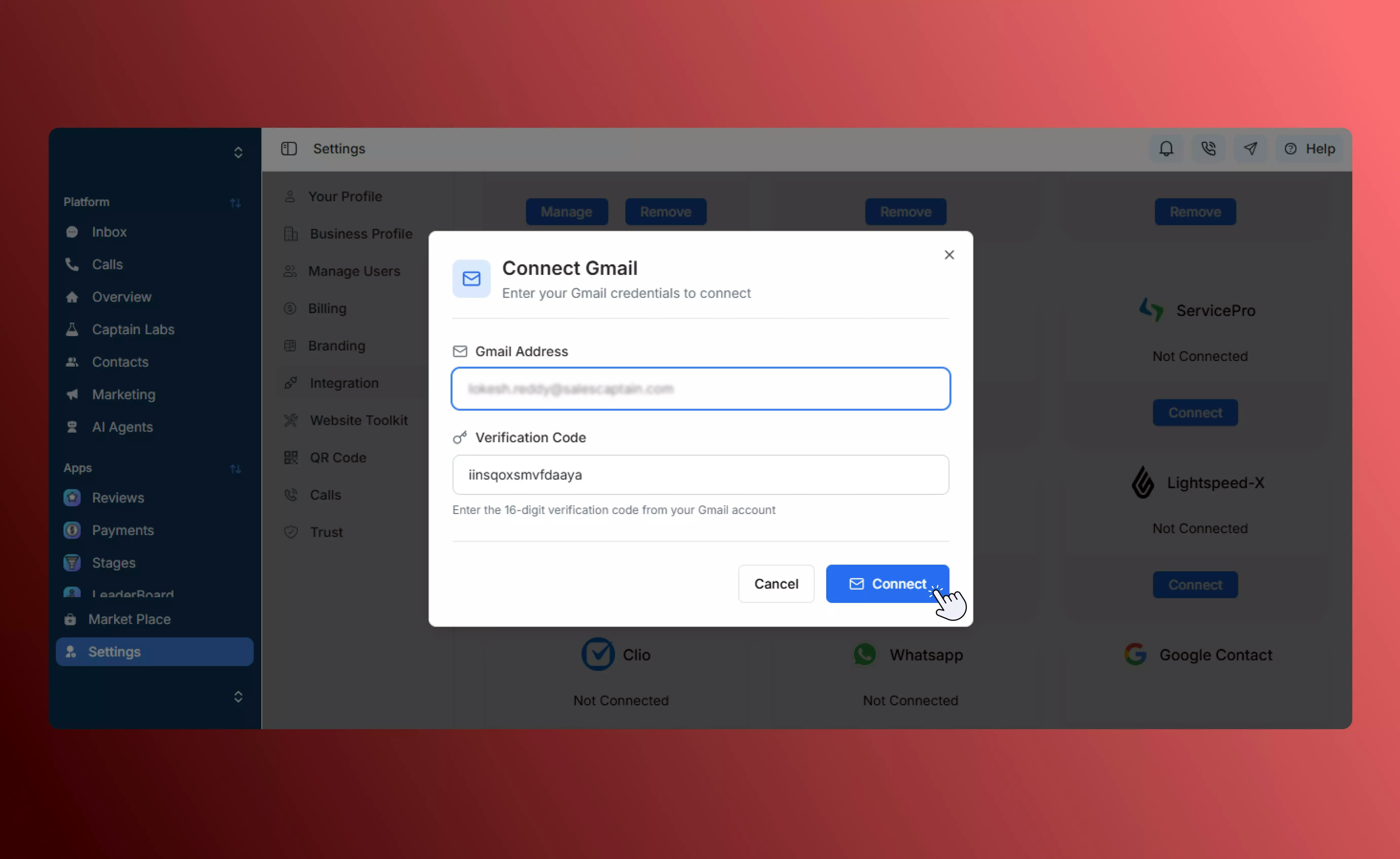
- Click Connect.
Step 5: Connect Your Conversation Profile
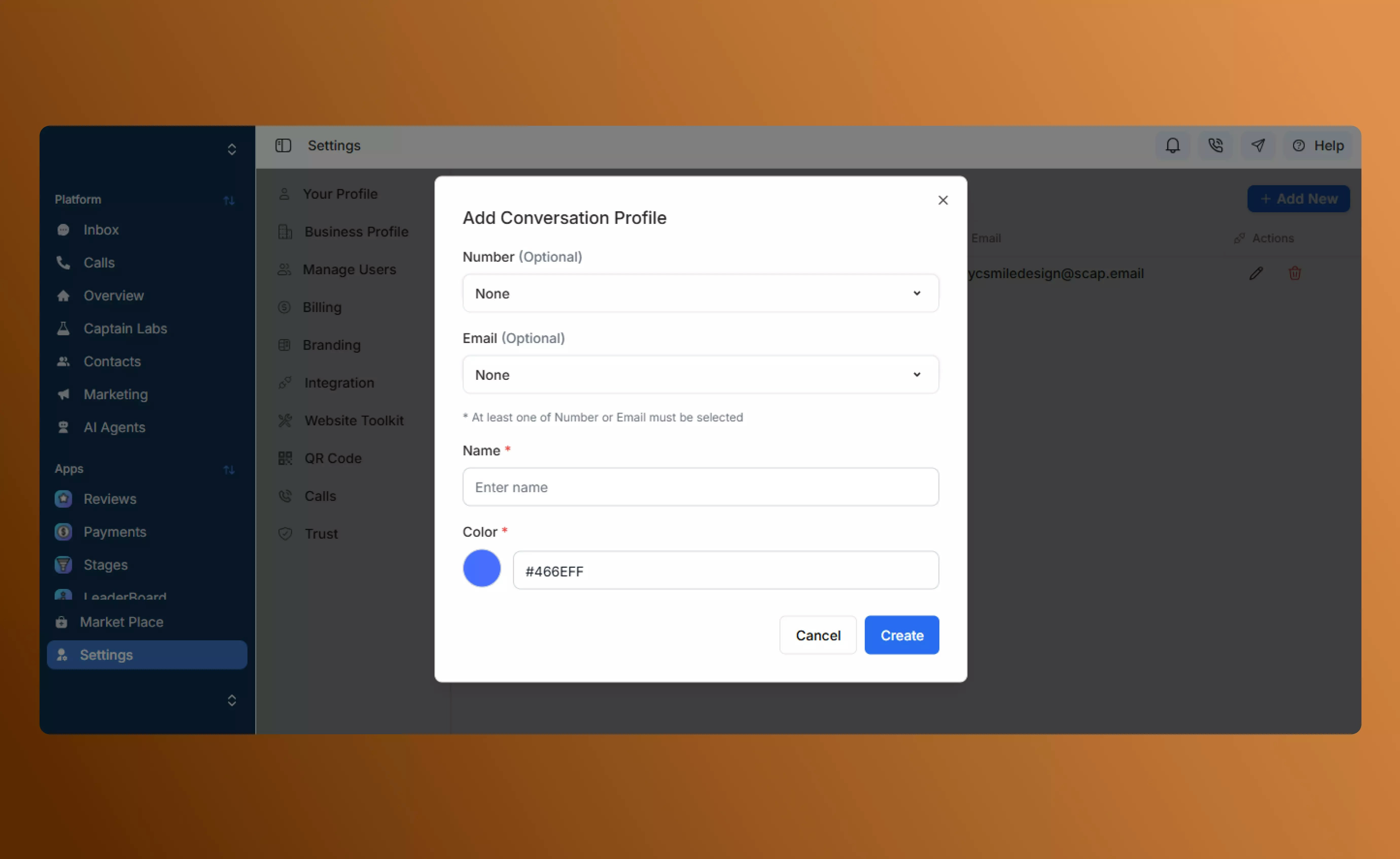
After connecting Gmail, you must link it to your conversation profile to start using email inside the Inbox.- Click the link below: https://app.salescaptain.com/dashboard/settings/conversation-profile
- Select the conversation profile you want to use.
- Assign the connected Gmail account to the profile.
-
Save your changes.
Best Practices
- Never share your App Password with anyone.
- You can revoke the App Password anytime from your Google Account settings.
- If you change your Google security settings, reconnect Gmail if required.
- Test sending and receiving an email after connection to ensure everything works correctly.