

Some AI clients, such as Claude and ChatGPT, connect to SalesCaptain through an OAuth client that you create in the SalesCaptain app. The client gives you a Client ID and Client Secret, which you paste into the AI client’s connector settings. You only need to create a client once. You can reuse it, or create a separate client for each AI tool you connect.

Before you begin

You need:
  • A SalesCaptain account with access to Settings

Create the client

1

Open API & Webhooks

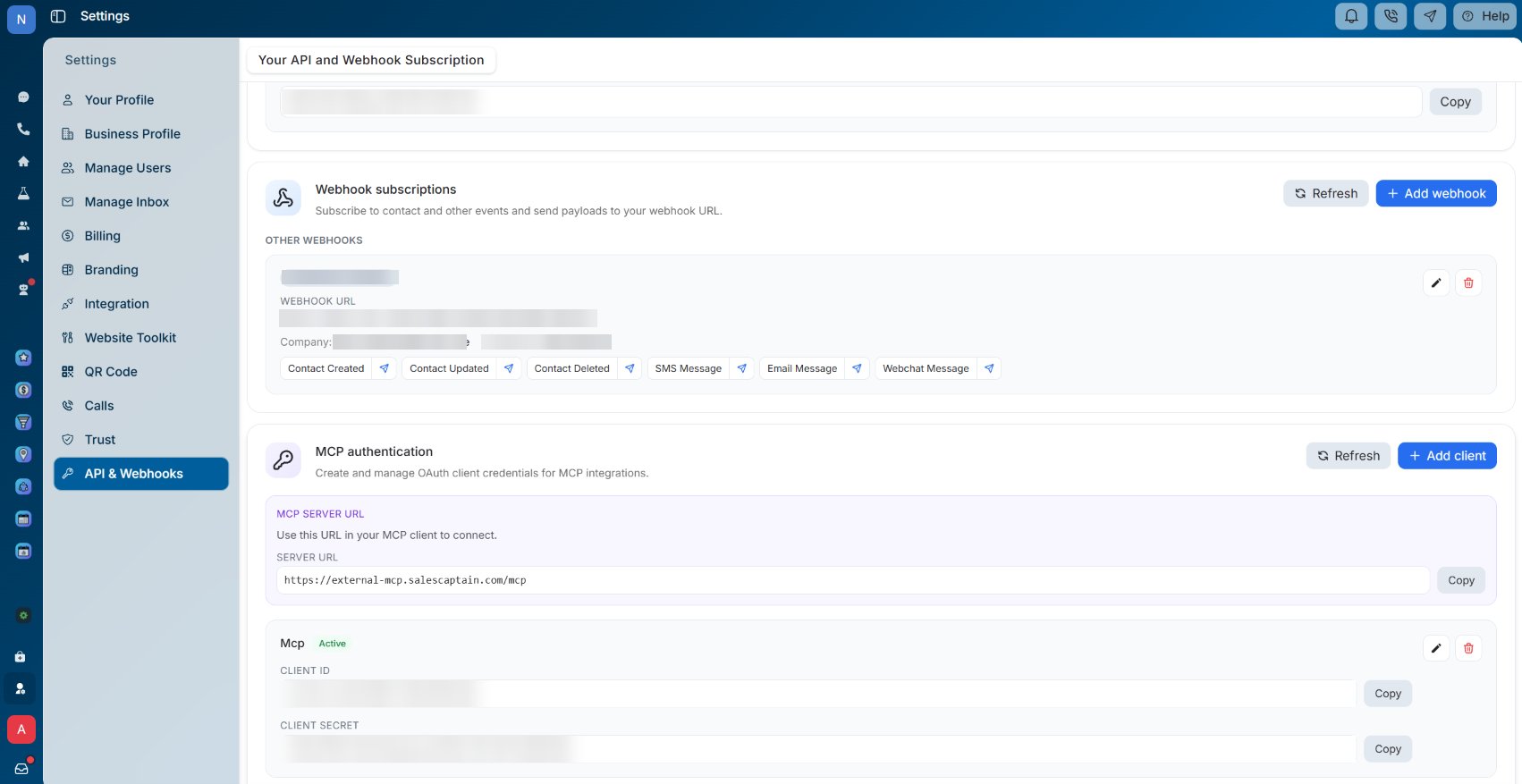
In the SalesCaptain app, go to Settings > API & Webhooks.
2

Add a client

Scroll down to MCP authentication and click + Add client.
3

Copy your client details

Your new client appears with a Client ID and Client Secret. Keep this page open while you set up your AI client, so you can copy both values.The MCP server URL is shown on the same page.SalesCaptain API & Webhooks settings showing the MCP authentication section with the server URL, Client ID and Client Secret
Keep your Client Secret private. Don’t share it or paste it anywhere except your AI client’s connector settings. If it’s exposed, delete the client and create a new one.

Next steps

  • Connect Claude or ChatGPT with your new client details.
  • See every supported AI client on the MCP Server overview.