

Before you begin
You need:- The Claude app (desktop or web)
- A SalesCaptain account you can log in to
- A Client ID and Client Secret from SalesCaptain. If you don’t have them yet, follow Create an MCP client.
Connect Claude
1
Add a custom connector
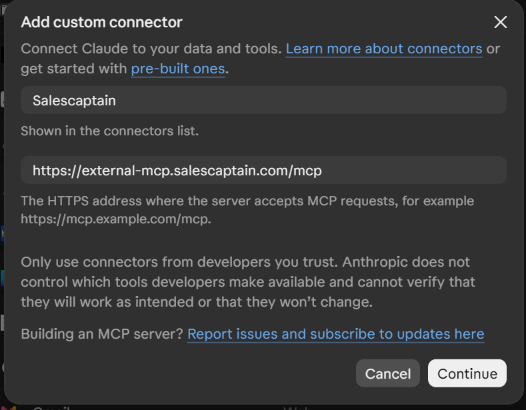
- In Claude, open Settings > Customize > Connectors.
- Click Add custom connector.
-
Fill in:
- Name:
Salescaptain - URL:
https://external-mcp.salescaptain.com/mcp
- Name:
-
Click Continue.
2
Paste your OAuth client details
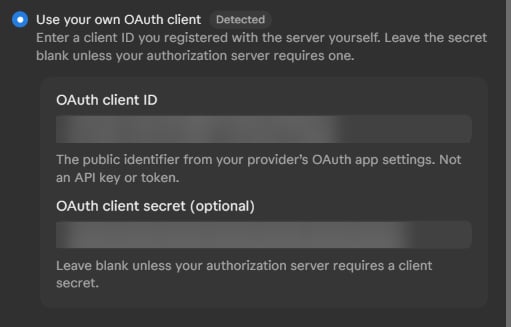
- Select Use your own OAuth client.
- Paste the Client ID from SalesCaptain into OAuth client ID.
- Paste the Client Secret from SalesCaptain into OAuth client secret.
-
Save to create the connector.
3
Connect
Open the new Salescaptain connector and click Connect.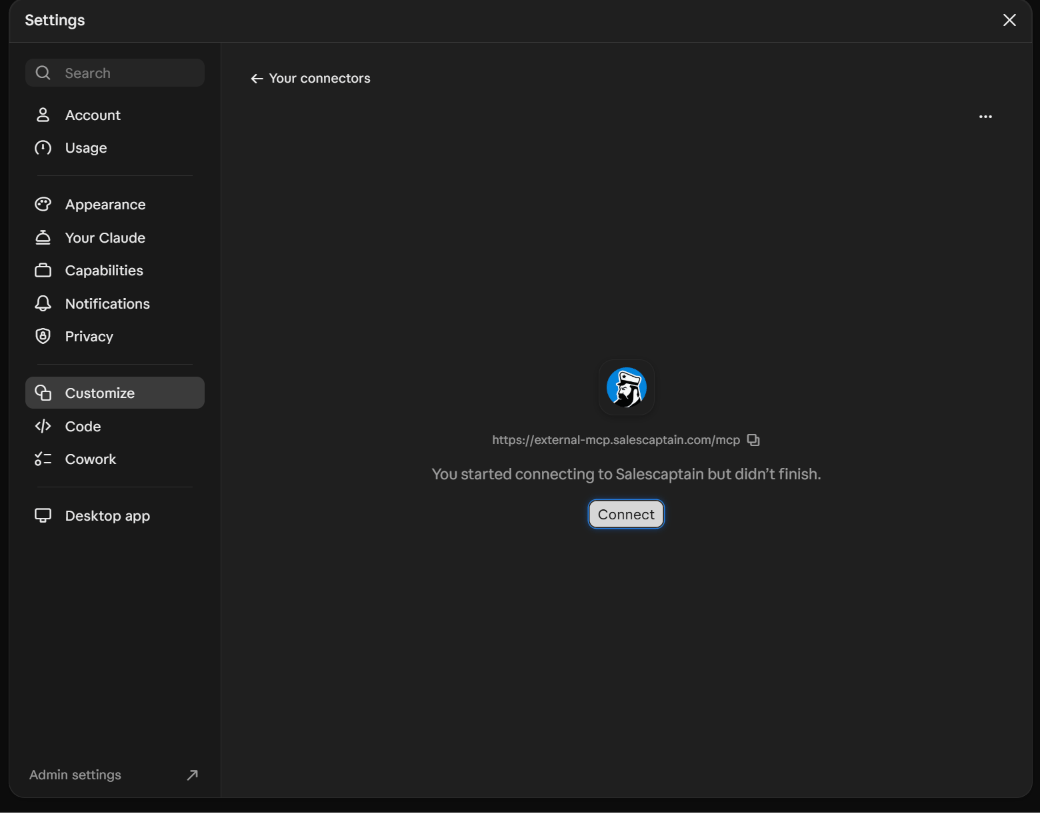
4
Log in with SalesCaptain
A SalesCaptain login window opens. Sign in with your SalesCaptain email and password, then click Sign In.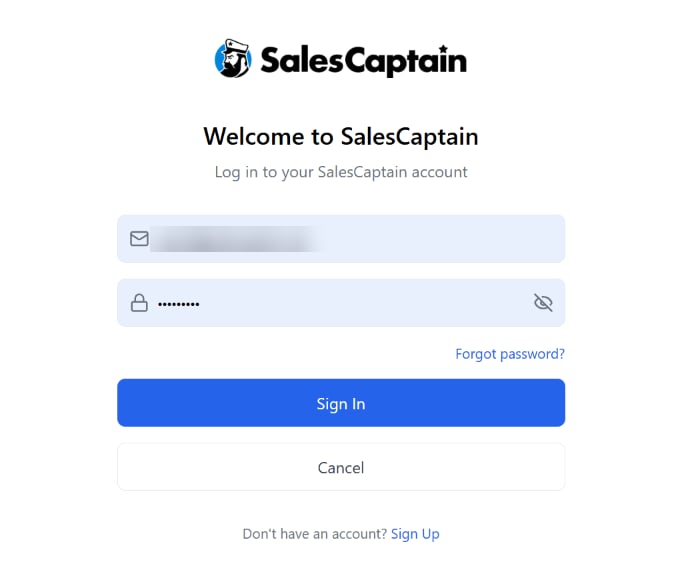
5
Check the connection
Claude returns to the connector page and shows Connected to Salescaptain. The SalesCaptain tools are listed under Tool permissions. For each tool, choose whether it runs automatically, needs your approval, or is blocked.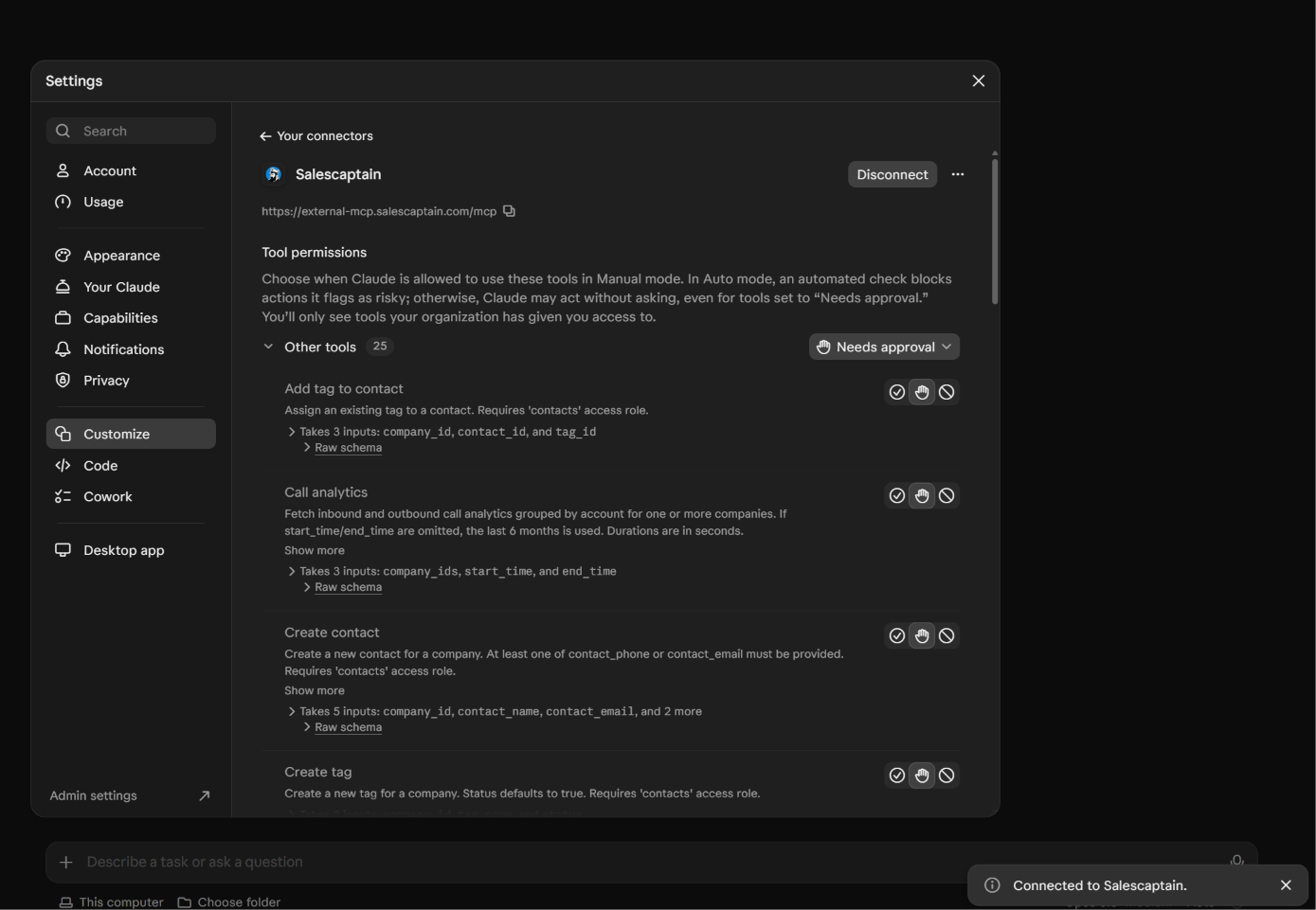
Try it
Ask Claude something like:- List my recent contacts in SalesCaptain.
- Show call analytics for last month.
Next steps
- See every tool Claude can use in Available tools.
- Try ready-made prompts in Examples.