

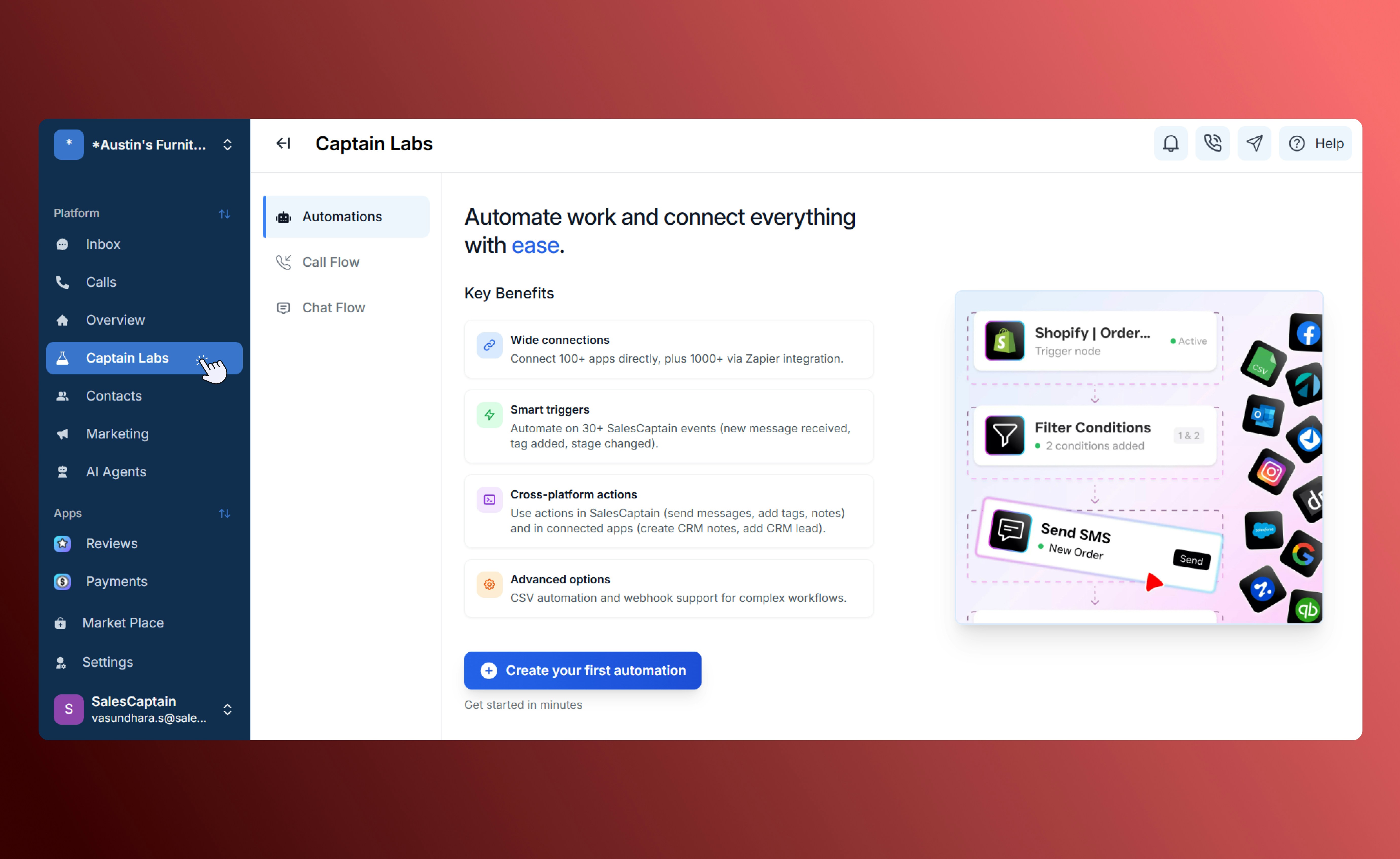
Automations home page
SalesCaptain (SC) Triggers
Internal triggers that respond to activity within your SalesCaptain account.- Go to Captain Labs → Automations.
- Click New Automation → SC Trigger.
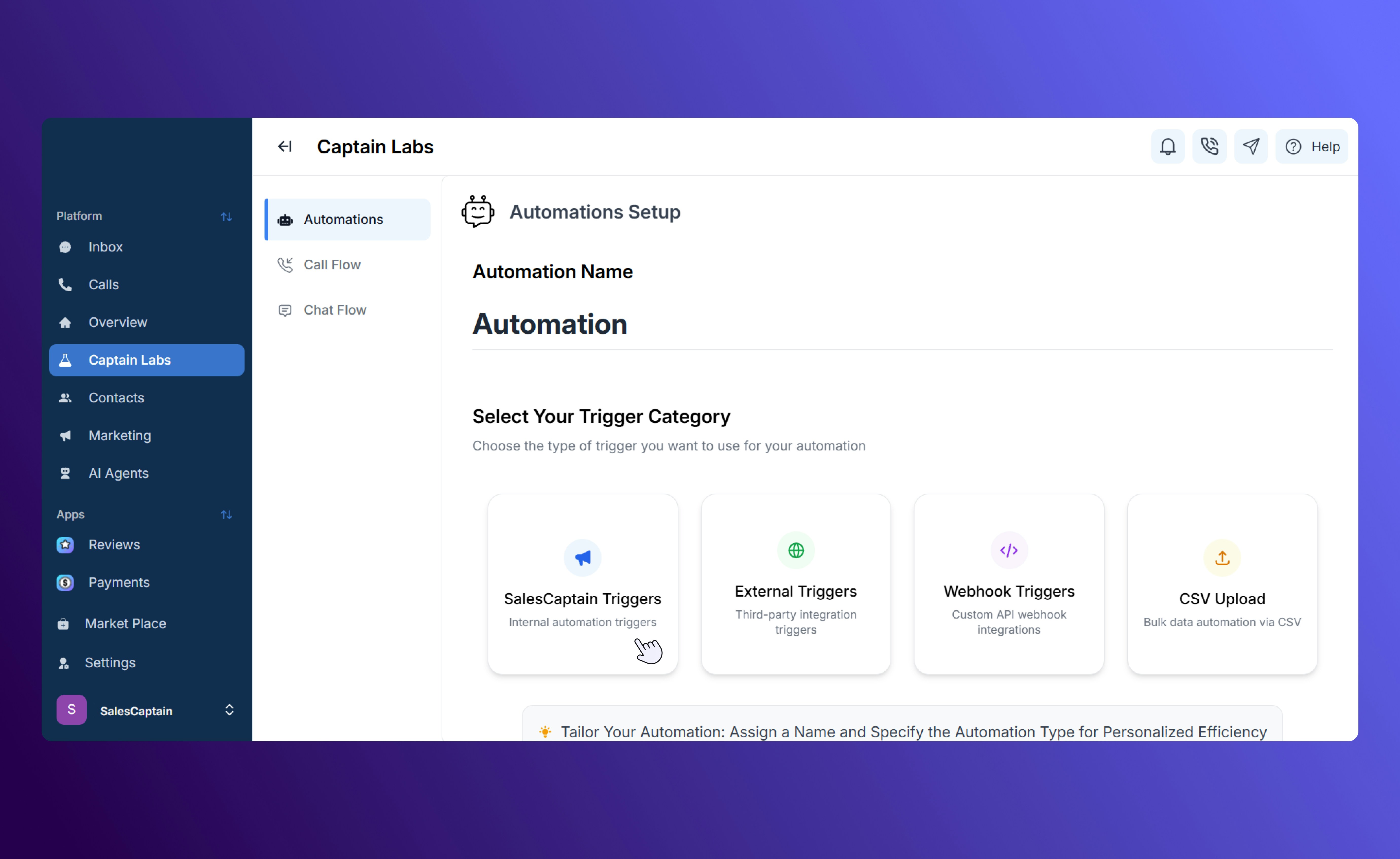
Automation Triggers in SalesCaptain
- Choose a trigger event (e.g. New Review Received, Incoming Message, Appointment Canceled, Stage Updated).
- Add actions like Send Email/SMS, Assign Conversation, or Move to Stage.
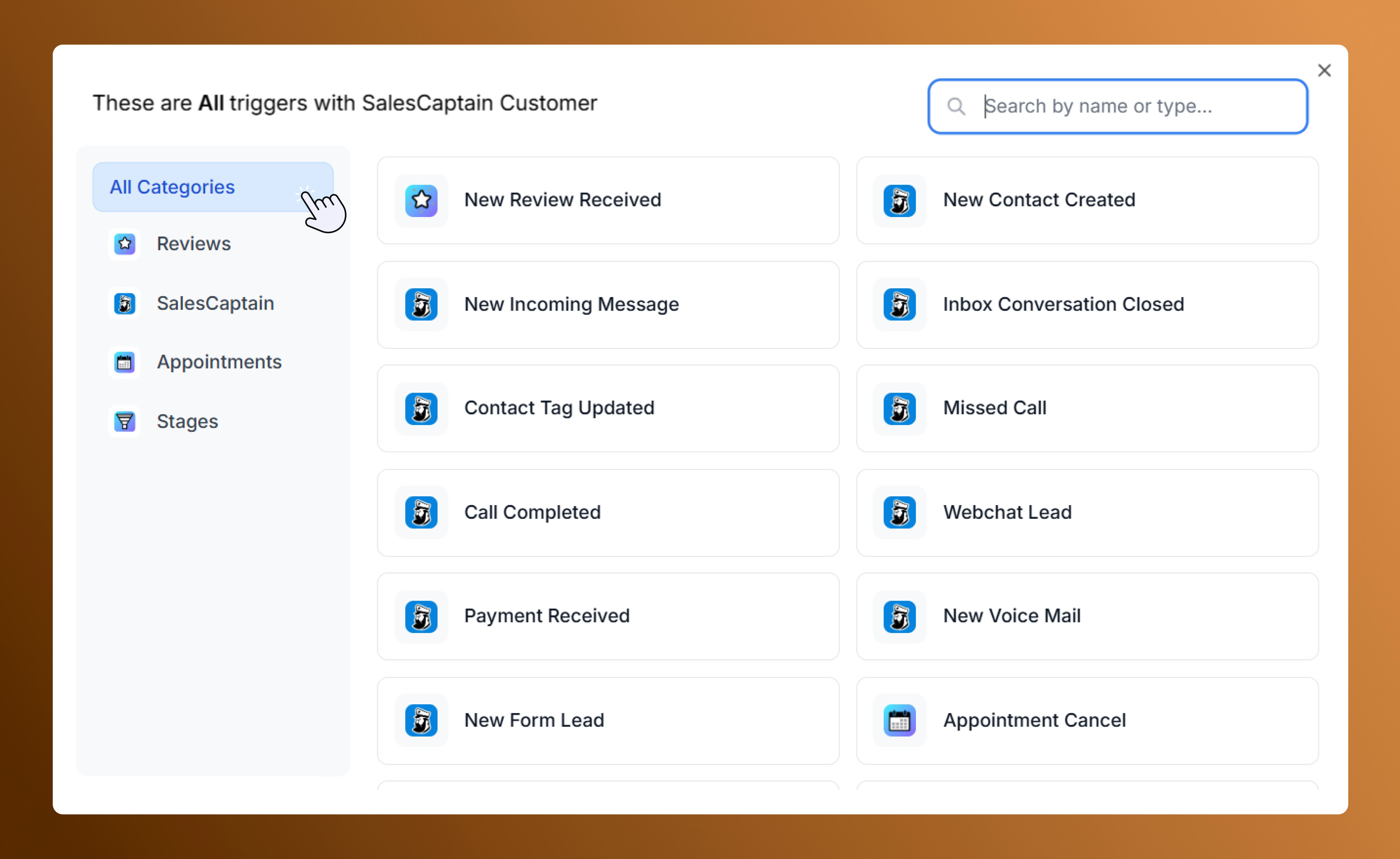
SalesCaptain automation triggers
- SC Triggers are fixed event-based triggers.
- Each trigger type has its own keys depending on the event.
External Triggers
Start automations from third-party apps integrated with SalesCaptain, such as DrChrono, Clio, or Zoho. Example: When a new contact is added in Zoho, it syncs with SalesCaptain and sends a welcome SMS.- Go to Captain Labs → Automations → New Automation.
- Select External Trigger.
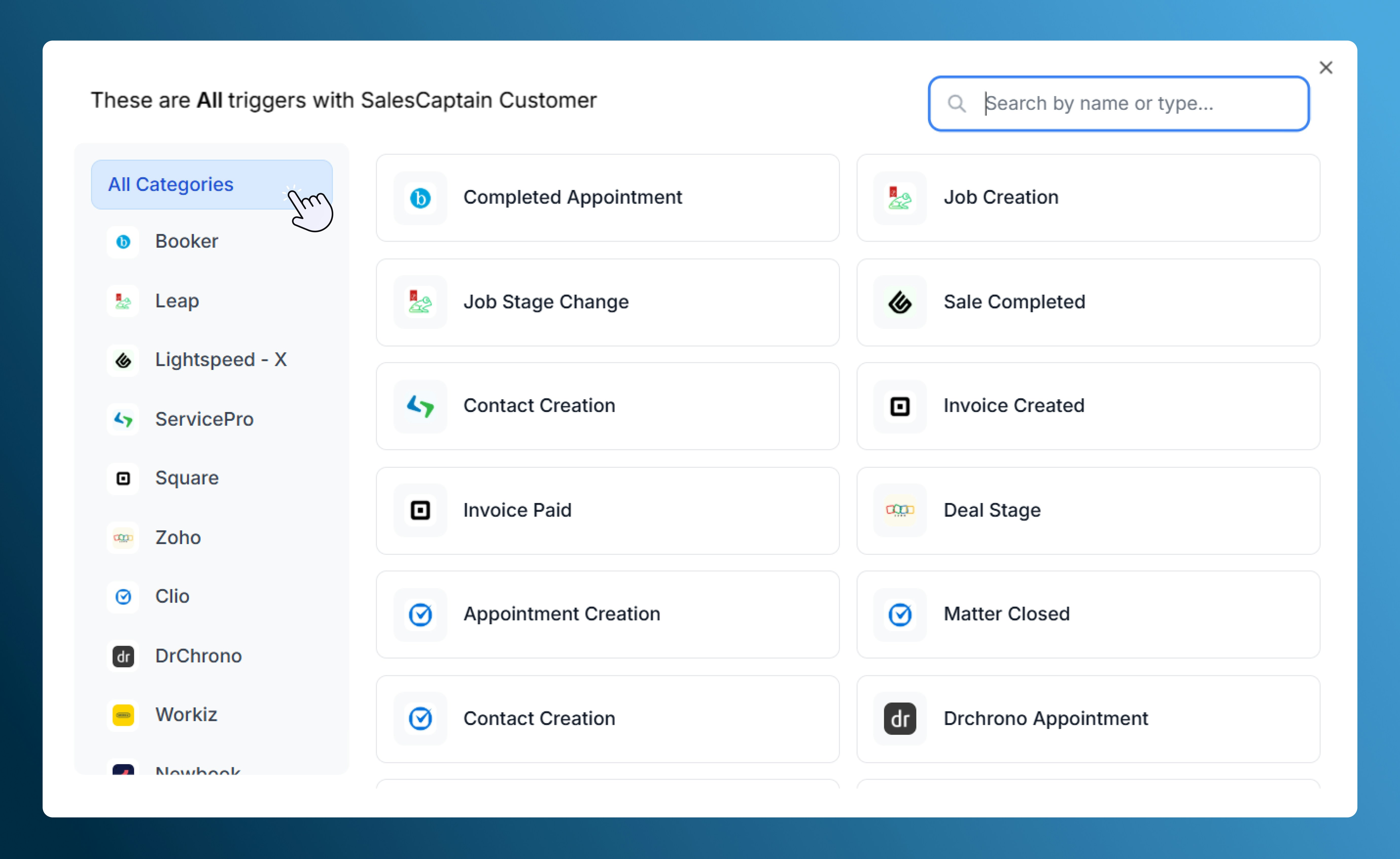
External automation triggers
Webhook Triggers
For custom API connections between systems. Webhooks send or receive data instantly when events occur.- Go to Captain Labs → Automations → New Automation.
- Select Webhook Trigger.
- Configure the webhook:
- Set Prompt and Label Extracted Data.
-
Copy the generated URL and share it with the external system.
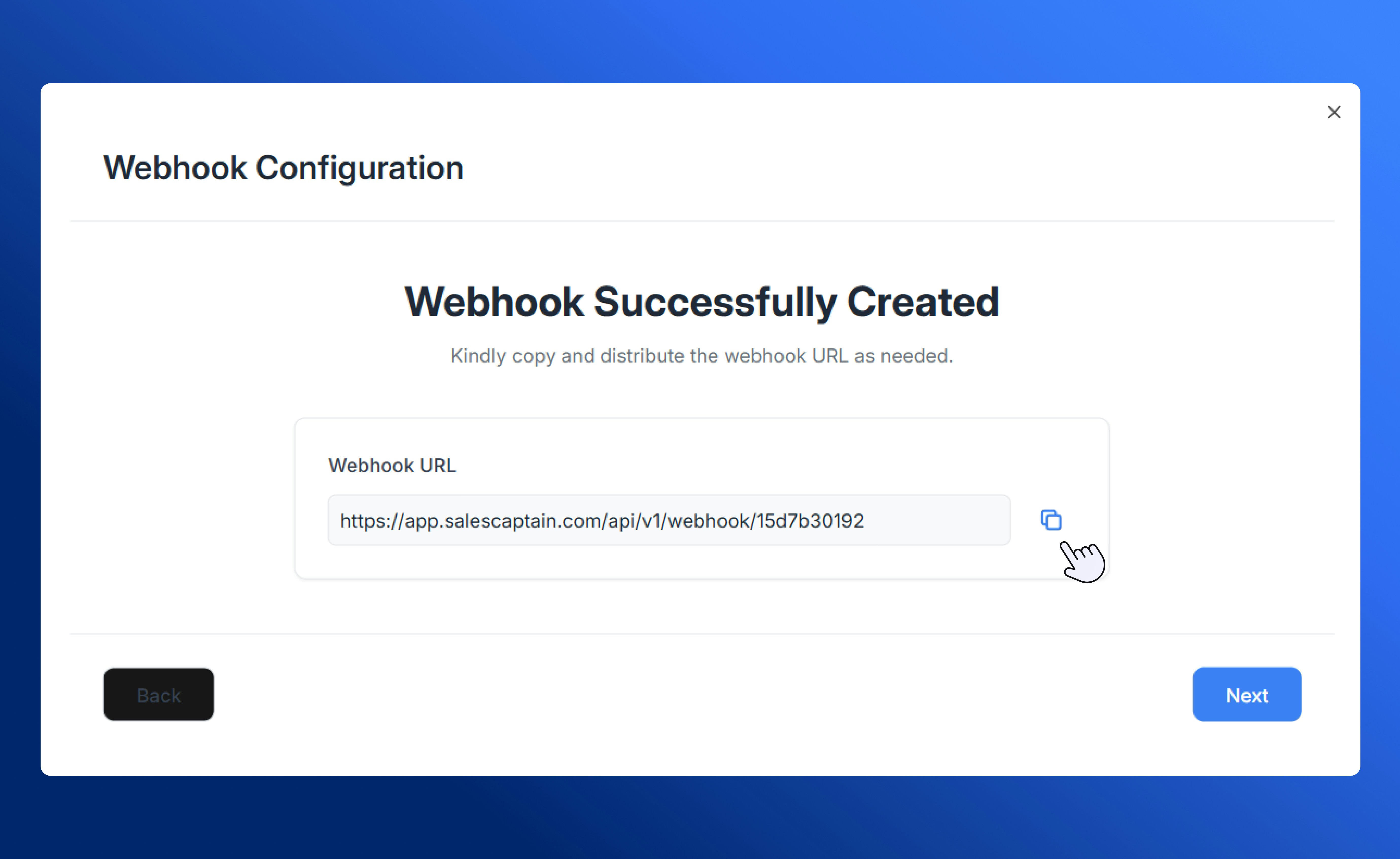
Webhook URL generation
- The trigger and its associated keys will then be displayed on the Canvas.
- Drag and drop the flow controls and actions to build your custom automation flow.
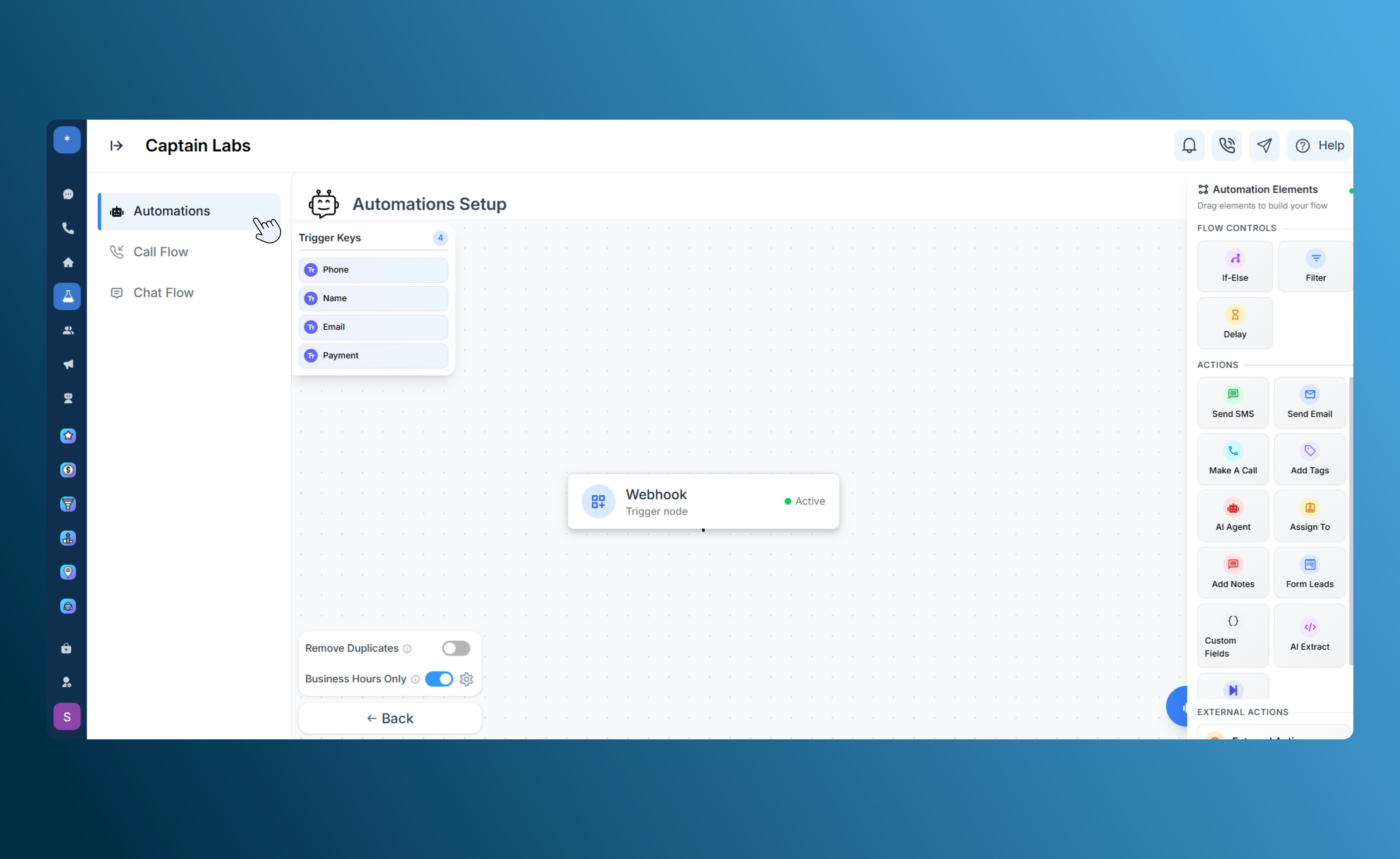
Webhook trigger on the canvas
CSV Upload Triggers
Automate bulk workflows when uploading contact lists or data files.- Go to Captain Labs → Automations → New Automation.
Select CSV Upload. - Upload a sample CSV and map fields to SalesCaptain contact data.
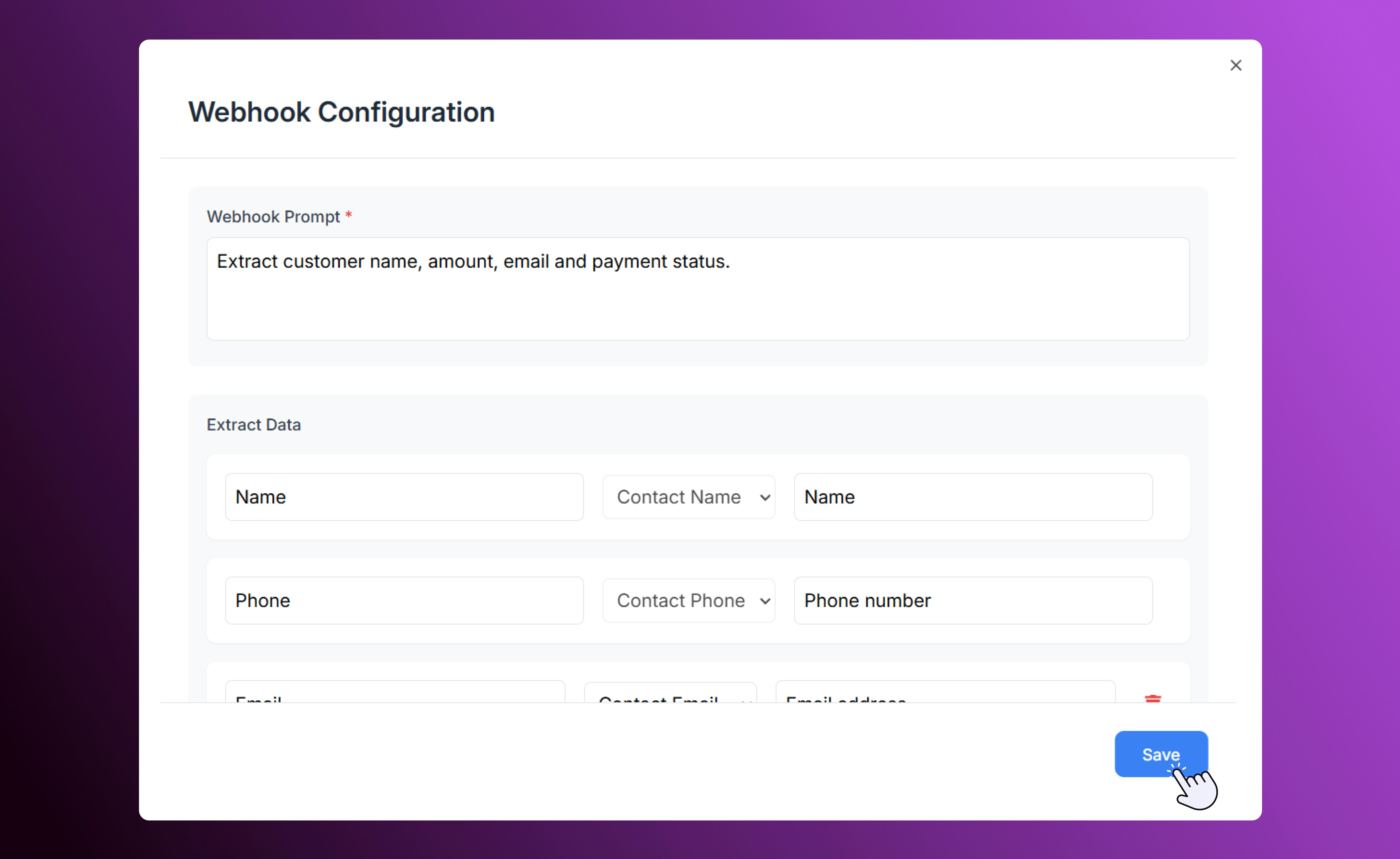
CSV upload configuration
- Save the configuration for quick reuse.
- Upload new files to trigger automations automatically.
Use Cases
- Instant Follow-Ups: When a lead sends a new message, trigger an automated “We’ll get back to you soon” SMS.
- Customer Retention: When a stage is updated to “Lost Lead,” schedule a win-back campaign.
- Third-Party Sync: When a new appointment is created in DrChrono, add it to SalesCaptain and notify your team.
- Custom Web Integrations: Use webhooks to push form submissions or CRM updates directly into your SalesCaptain Inbox.
- Bulk Campaigns: Upload a CSV of customers who made recent purchases and trigger thank-you or review request messages.