> ## Documentation Index
> Fetch the complete documentation index at: https://docs.salescaptain.com/llms.txt
> Use this file to discover all available pages before exploring further.
# Facebook to SalesCaptain
Integrating Facebook Messenger with SalesCaptain allows you to centralize your social media inquiries alongside your other communication channels. This integration syncs your **Facebook Business Page** messages directly to your SalesCaptain inbox.
**Business Accounts Only:** SalesCaptain can only connect to Facebook Business Pages. It is **not possible** to integrate personal Facebook profiles.
## **Requirements**
Before you begin the integration, ensure you have a professional presence on Facebook:
1. **Create a Page:** If you currently only use a personal account, you must create a Facebook Page for your business.
2. **Required Details:** When setting up your page, ensure you provide a **Page Name**, select a relevant **Category**, and include your **Contact Information** and **Website URL**.
3. **Meta Business Account:** Both Facebook and Instagram direct messages can be linked to the same account details, and you will be directed to a facebook login page for both.
## **Integration Steps**
To link your Facebook Page to the SalesCaptain platform, follow these steps:
1. Navigate to **Settings** > **Integrations**.
2. Select **Facebook** from the list of available integrations.
3. Click **Log into your Facebook**.
4. A pop-up will appear requesting permission to access your account. Authenticate using your Facebook credentials.
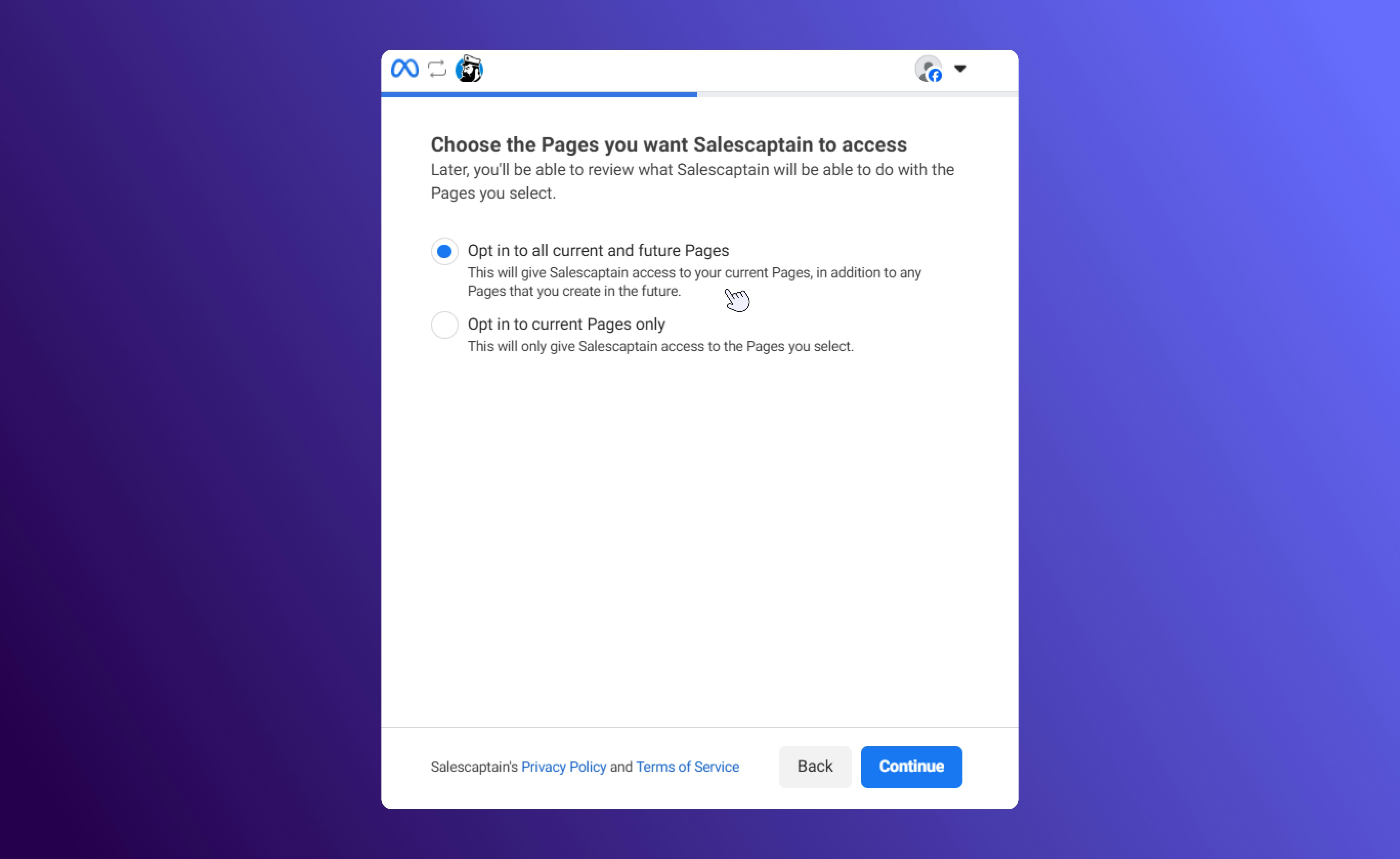 5. SalesCaptain will display a list of **Business Pages** associated with your account. Select the page you wish to sync.
6. Once selected, the screen will display a **Success Message** confirming the connection.
5. SalesCaptain will display a list of **Business Pages** associated with your account. Select the page you wish to sync.
6. Once selected, the screen will display a **Success Message** confirming the connection.
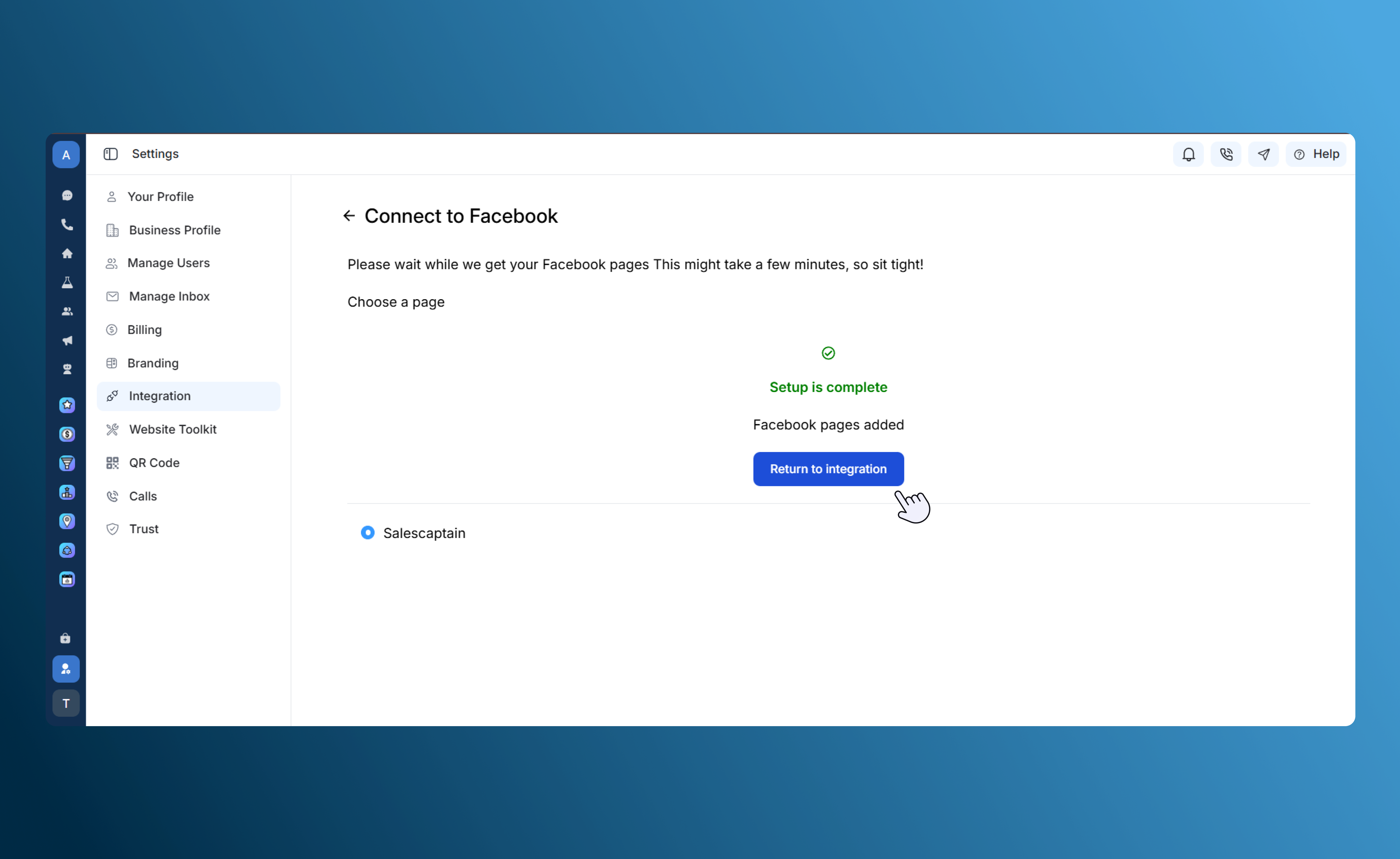 **Note:** If you have just created your Facebook Business Page, it may take some time to appear in the selection list. If you don't see it immediately, wait a few minutes and refresh the page.
## **Conversation Management**
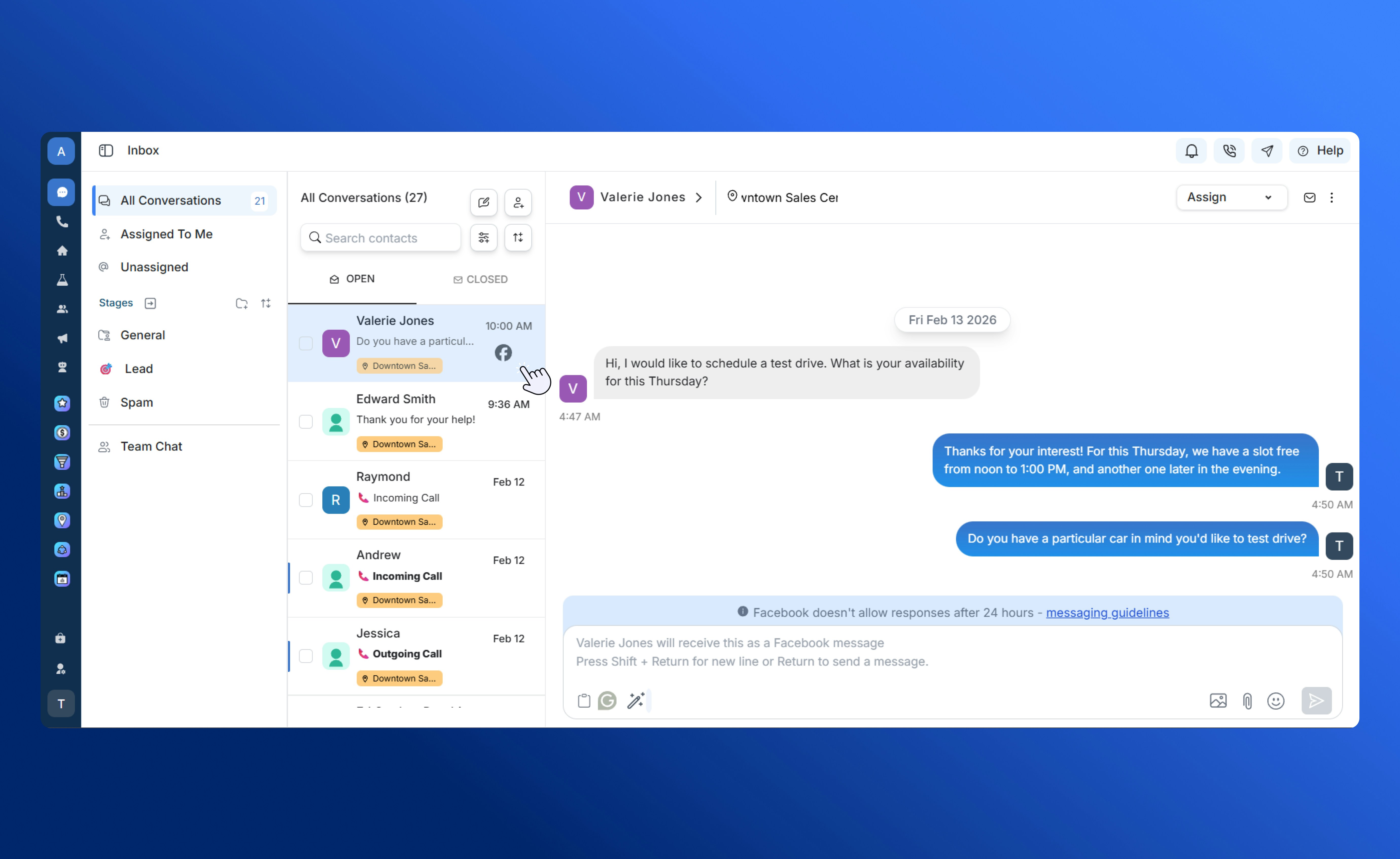
Facebook integrations utilize a "Temporary Chat" logic to keep your inbox organized and compliant with platform standards.
* **24-hour Window:** Conversations remain active as long as there is ongoing communication.
* **Automatic Closure:** If there is **no communication from either side for 24 consecutive hours**, the conversation will be closed automatically.
* **Conversation History:** You can access past messages under the **Closed** tab in the Unified Inbox.
**Note:** If you have just created your Facebook Business Page, it may take some time to appear in the selection list. If you don't see it immediately, wait a few minutes and refresh the page.
## **Conversation Management**
Facebook integrations utilize a "Temporary Chat" logic to keep your inbox organized and compliant with platform standards.
* **24-hour Window:** Conversations remain active as long as there is ongoing communication.
* **Automatic Closure:** If there is **no communication from either side for 24 consecutive hours**, the conversation will be closed automatically.
* **Conversation History:** You can access past messages under the **Closed** tab in the Unified Inbox.
 ## **Troubleshooting**
If you are unable to see your Business Page during the setup process, please verify:
* That you are an Admin of the page.
* That the page is "Published" and visible to the public.
* That you have granted all requested permissions during the Facebook login prompt.
## **Policies & Compliance**
All users must adhere to Meta’s official guidelines regarding business messaging. Please review the following before initiating campaigns:
[Platform Policy Overview - Meta](https://developers.facebook.com/docs/messenger-platform/policy/policy-overview/#standard_messaging)
## **Troubleshooting**
If you are unable to see your Business Page during the setup process, please verify:
* That you are an Admin of the page.
* That the page is "Published" and visible to the public.
* That you have granted all requested permissions during the Facebook login prompt.
## **Policies & Compliance**
All users must adhere to Meta’s official guidelines regarding business messaging. Please review the following before initiating campaigns:
[Platform Policy Overview - Meta](https://developers.facebook.com/docs/messenger-platform/policy/policy-overview/#standard_messaging)