> ## Documentation Index
> Fetch the complete documentation index at: https://docs.salescaptain.com/llms.txt
> Use this file to discover all available pages before exploring further.
# WhatsApp to SalesCaptain
Integrating WhatsApp with SalesCaptain allows you to manage customer conversations directly from your unified inbox. This integration utilizes the **Twilio API** to bridge communication between WhatsApp and our platform.
**This can be a complicated process.** If you encounter any issues during setup, please email [support@salescaptain.com](mailto:support@salescaptain.com) for assistance.
## **Requirements**
Before starting the integration, ensure you have the following:
* **WhatsApp Business Account:** Standard personal WhatsApp accounts **cannot** be connected. You must use a registered Business account.
* **Twilio Account:** You must have an active Twilio account to facilitate the API connection.
* **A Phone Number:** A phone number that is not currently linked to another WhatsApp account.
## **Step 1: Configure the Channel in SalesCaptain**
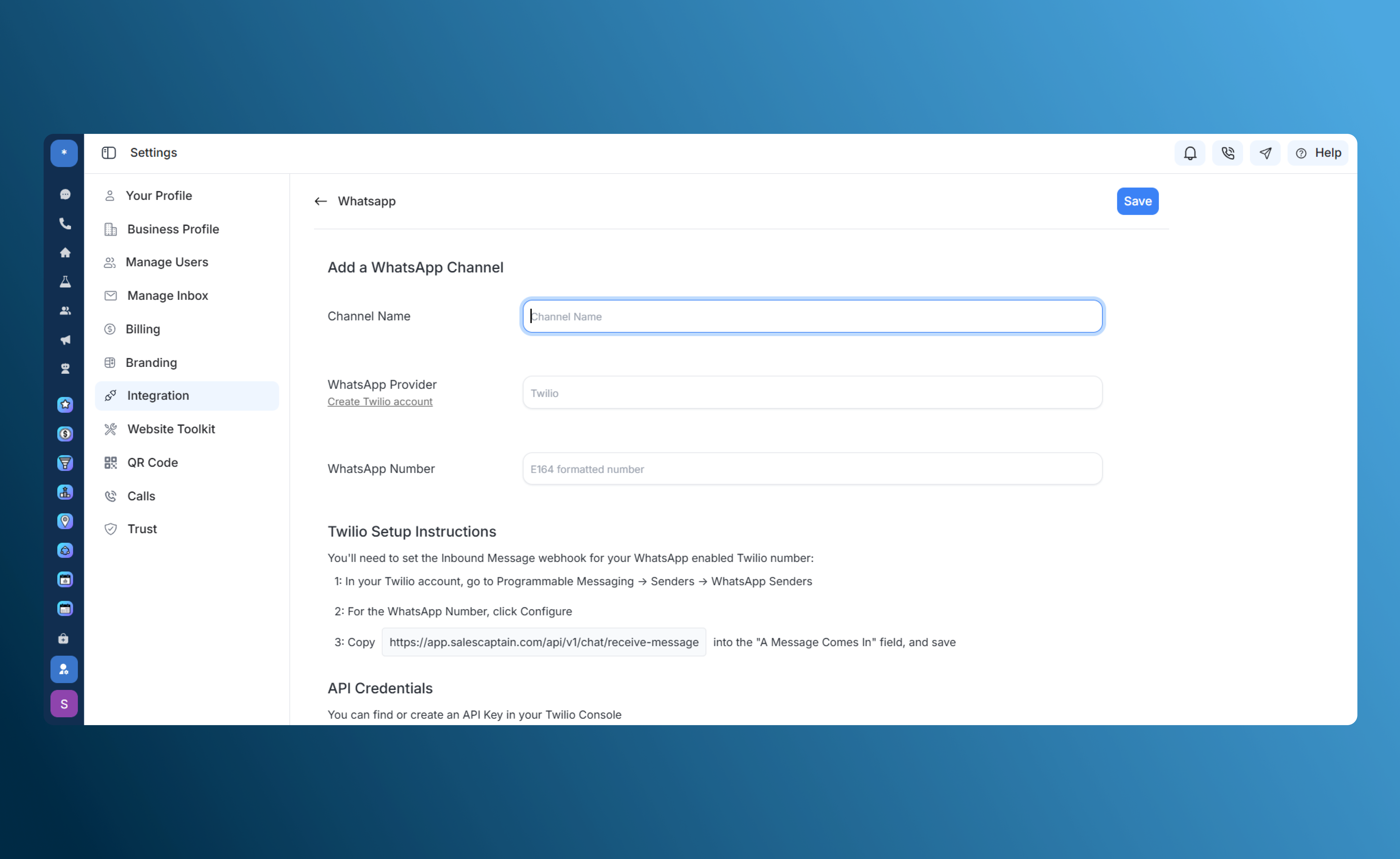
To begin, you need to create the WhatsApp channel within your SalesCaptain dashboard:
1. Navigate to **Settings** > **Integrations**.
2. Select **WhatsApp**.
3. Click **Add WhatsApp Channel**.
4. Enter a **Channel Name** (e.g., "Main Support Line") and the **Phone Number** you intend to use.
 ## **Step 2: Configure Twilio**
Once your Twilio account is set up with a WhatsApp-enabled number, you must point Twilio to the SalesCaptain server to receive messages.
1. Log in to your **Twilio Console**.
2. Go to **Programmable Messaging** > **Senders** > **WhatsApp Senders**.
3. Locate your WhatsApp Number and click **Configure**.
4. In the **"A Message Comes In"** field, paste the following URL:\
[https://app.salescaptain.com/api/v1/chat/receive-message](https://app.salescaptain.com/api/v1/chat/receive-message)
5. **Save** your changes.
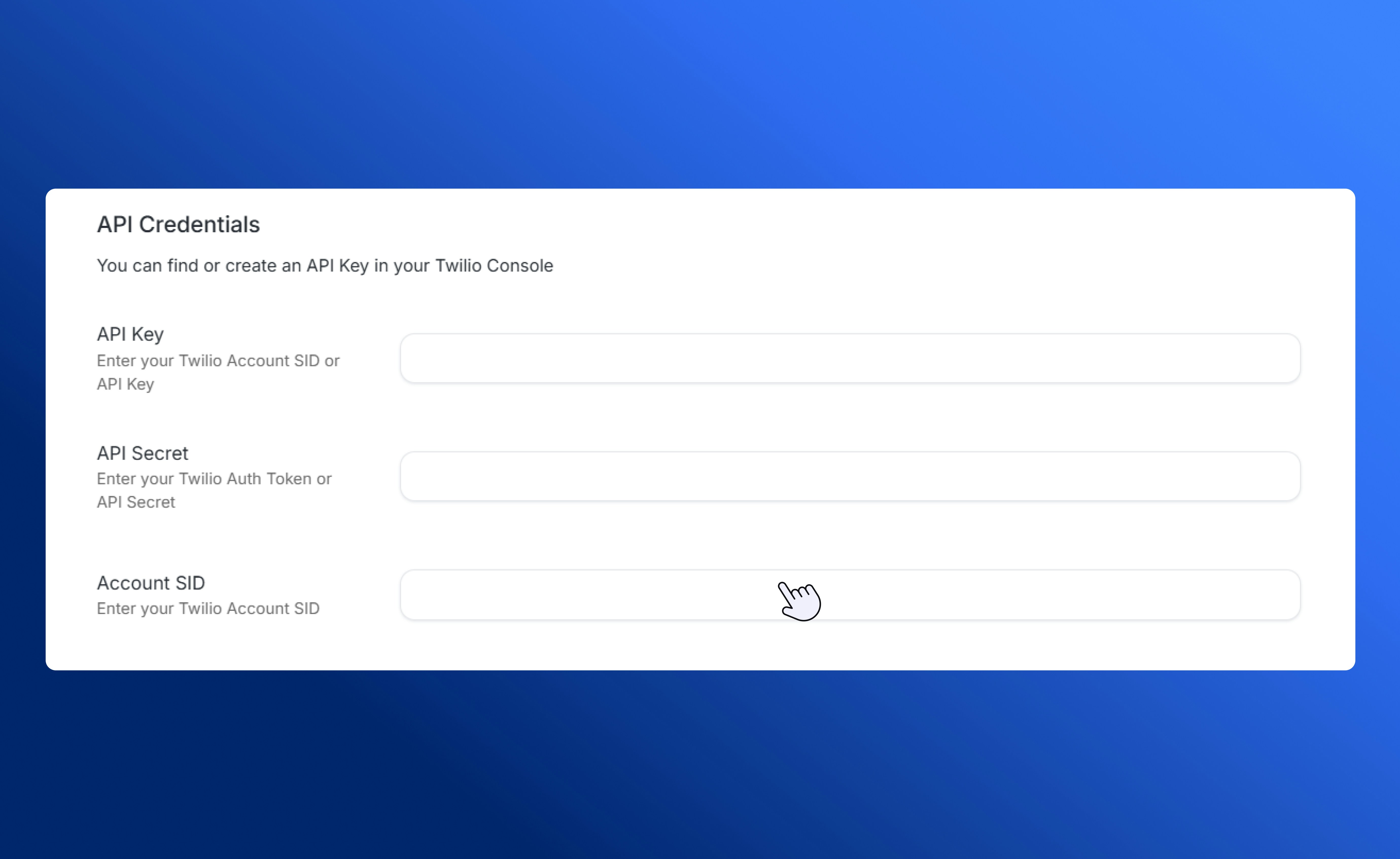
## **Step 3: Connect API Credentials**
To finalize the link, you must provide your Twilio credentials to SalesCaptain. You can find these in your Twilio Console under the **Account Settings** or **API Keys** section.
## **Step 2: Configure Twilio**
Once your Twilio account is set up with a WhatsApp-enabled number, you must point Twilio to the SalesCaptain server to receive messages.
1. Log in to your **Twilio Console**.
2. Go to **Programmable Messaging** > **Senders** > **WhatsApp Senders**.
3. Locate your WhatsApp Number and click **Configure**.
4. In the **"A Message Comes In"** field, paste the following URL:\
[https://app.salescaptain.com/api/v1/chat/receive-message](https://app.salescaptain.com/api/v1/chat/receive-message)
5. **Save** your changes.
## **Step 3: Connect API Credentials**
To finalize the link, you must provide your Twilio credentials to SalesCaptain. You can find these in your Twilio Console under the **Account Settings** or **API Keys** section.
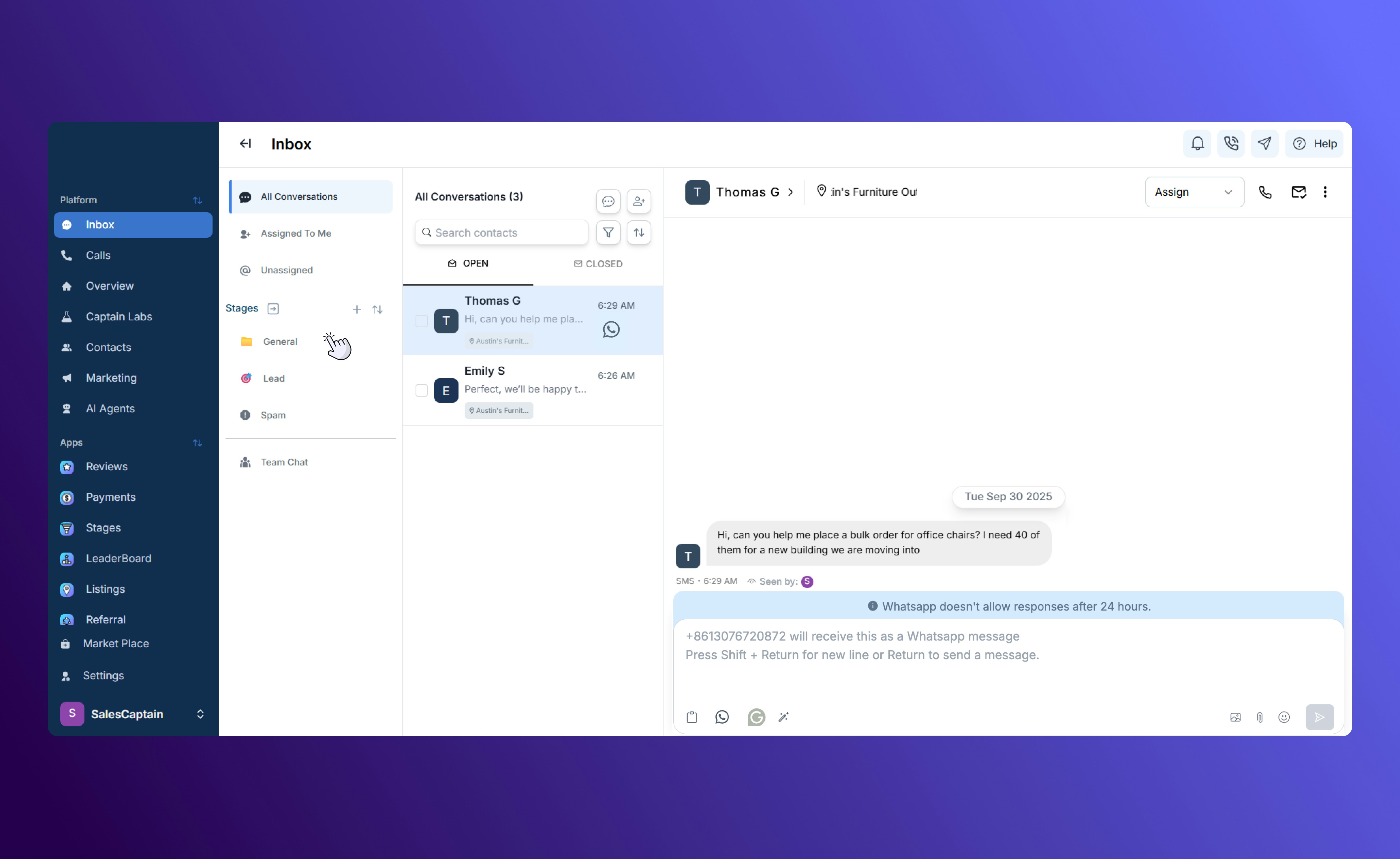
 Once you enter your Twilio API credentials into SalesCaptain, you’re good to go!
Now, incoming WhatsApp messages will appear in the Unified Inbox, with an icon below the date indicating that the message was received on WhatsApp.
Once you enter your Twilio API credentials into SalesCaptain, you’re good to go!
Now, incoming WhatsApp messages will appear in the Unified Inbox, with an icon below the date indicating that the message was received on WhatsApp.
 ## **Understanding the 24-Hour Window**
WhatsApp's Business API operates on a **24-hour session** logic.
* **Temporary Chats:** A conversation session lasts for **24 hours** from the last message sent by the customer.
* **Automatic Closure:** If there are no messages exchanged from either side for a full 24-hour period, the chat session will **close automatically.**
* **Finding Past Conversations:** After a window closes, you can still access the conversation history in the **Closed** tab of the Universal Inbox.
## **Policies & Compliance**
All users must adhere to Meta’s official guidelines regarding business messaging. Please review the following before initiating campaigns:
[Platform Policy Overview - Meta](https://developers.facebook.com/docs/messenger-platform/policy/policy-overview/#standard_messaging)
## **Understanding the 24-Hour Window**
WhatsApp's Business API operates on a **24-hour session** logic.
* **Temporary Chats:** A conversation session lasts for **24 hours** from the last message sent by the customer.
* **Automatic Closure:** If there are no messages exchanged from either side for a full 24-hour period, the chat session will **close automatically.**
* **Finding Past Conversations:** After a window closes, you can still access the conversation history in the **Closed** tab of the Universal Inbox.
## **Policies & Compliance**
All users must adhere to Meta’s official guidelines regarding business messaging. Please review the following before initiating campaigns:
[Platform Policy Overview - Meta](https://developers.facebook.com/docs/messenger-platform/policy/policy-overview/#standard_messaging)